
Appearance
AYCD Integration
Ordara can read your order emails through AYCD instead of connecting to each of your mailboxes directly. If you already use AYCD to manage your email accounts, this is often the easiest and most reliable way to get your orders into Ordara.
This page explains what AYCD is, how Ordara talks to it, and how to set it up step by step.
Two products, two jobs
AYCD collects and stores your mail. Ordara reads order confirmations out of it. They are separate tools — Ordara never changes how AYCD fetches your email. More on this below.
What is AYCD?
AYCD (specifically AYCD Inbox, part of AYCD Toolbox) is a third-party tool that connects to many email accounts on your behalf and keeps a copy of your mail in one place. You add your email accounts inside AYCD, and AYCD handles logging into each one and pulling down new messages.
AYCD then makes that mail available over a standard IMAP server — the same protocol Ordara already uses to read email. So instead of Ordara connecting to Gmail, iCloud, Outlook, and so on individually, Ordara makes a single connection to AYCD and reads everything from there.
Don't have AYCD yet?
Grab the standard plan here: Get AYCD. For remote access you'll want the higher tier instead — see UpLink below.
Why connect Ordara to AYCD?
Using AYCD as the middle layer has two main advantages:
- Broader email support. AYCD can connect to providers Ordara can't reach on its own — most notably Outlook / Hotmail and other OAuth-based accounts. If AYCD can pull the mail, Ordara can read the orders, even for providers it could never connect to directly.
- Fewer direct connections, less rate-limiting. When you use AYCD, Ordara no longer opens an IMAP connection to each individual mailbox — those connections live on AYCD instead. Ordara talks to AYCD only. This reduces the number of simultaneous logins to your real mailboxes, which email providers often rate-limit.
How it works: the "relay" idea
The simplest way to picture AYCD is as a relay mail server.
- Your real mailboxes (Gmail, iCloud, Outlook…) sit upstream.
- AYCD pulls mail from them and holds it, then re-serves it on its own IMAP server.
- Ordara connects to AYCD's relay, not to your real mailboxes.
AYCD offers this relay in two forms:
| What it is | Network requirement | |
|---|---|---|
| Local IMAP Server | A relay that runs on your machine and is reachable over your local network. | Ordara and AYCD must be on the same machine or same local network. |
| UpLink | The same relay, made reachable over the internet. | Works from anywhere — the two no longer need to share a network. |
Think of UpLink as "the local relay, but you can reach it remotely." That's the only difference that matters for setup.
IMAP Server or UpLink only — not the Inbox API
Ordara connects through AYCD's IMAP Server (Local) or UpLink (remote) — both are standard IMAP. It does not use AYCD's Inbox API, which is a separate AYCD feature and isn't supported for order tracking. When you set things up below, you're always using the IMAP Server or UpLink details.
UpLink is a paid AYCD feature
UpLink requires AYCD Ultimate Pass and must be enabled inside AYCD under Settings → UpLink. If you don't have Ultimate Pass, you can only use the Local option, which means Ordara and AYCD must run on the same machine or home network.
Need Ultimate Pass? Get it here.
Important: AYCD controls its own email syncing
This is the single most important thing to understand.
Ordara cannot make AYCD fetch your mail
Ordara reads whatever AYCD already has. It cannot tell AYCD to scan further back, sync more often, or pull from a mailbox AYCD isn't watching.
- The Scan Back Date and sync status in Ordara only apply to data AYCD has already fetched and kept up to date. If a message isn't in AYCD yet, Ordara can't see it — no matter what you set in Ordara.
- You must configure AYCD's own email scanning / automatic sync settings inside AYCD, for each account and for whichever mode you choose (Unified or Individual — see below).
- Please review AYCD's own documentation and settings for how far back it scans and how often it syncs. That behavior is entirely on the AYCD side.
In short: configure AYCD for how often it fetches your email and how far back it goes, then configure Ordara for what to read out of whatever AYCD has fetched.
Before you start
You'll need:
- AYCD Inbox set up, with your email accounts linked inside AYCD and syncing.
- AYCD's IMAP Server details (host, port, and the IMAP password AYCD generates — see below).
- For remote access only: AYCD Ultimate Pass with UpLink enabled.
Use AYCD's password, not your email password
AYCD generates its own password for its IMAP Server. When Ordara asks for a password, enter the one AYCD generated in its IMAP Server settings — not your Gmail/iCloud/etc. account password.
Recommended: start fresh
If you're switching to AYCD, we strongly recommend you remove all existing accounts in Ordara first and then add AYCD.
- You won't lose anything permanently. Removing accounts clears Ordara's local copy, but everything is re-scanned and rebuilt once AYCD is connected (subject to what AYCD has fetched — see the caveat above).
- This keeps you cleanly on one path: either all AYCD or all direct, never a mix.
Running a mix of some AYCD accounts and some direct accounts may work, but it's easy to end up with the same mailbox connected twice (once directly, once through AYCD), which causes duplicate orders. Ordara blocks the obvious cases (see Conflicts and warnings), but the simplest, safest setup is to pick one approach for everything.
The two choices you'll make
When you add AYCD in Ordara, the wizard asks you two questions.
1. Location — how Ordara reaches AYCD
| Choice | When to pick it | Connection details |
|---|---|---|
| Local | Ordara and AYCD run on the same machine or same network. | Host is the AYCD machine's local IP (e.g. 192.168.1.50); port is the one AYCD shows under Mail → IMAP Server (e.g. 43217). |
| UpLink | Ordara and AYCD are on different networks / Ordara runs elsewhere. Requires Ultimate Pass. | Host is the UpLink address AYCD gives you (e.g. your-uplink-host.aycd.net); port is always 993. |
Without UpLink, you must be on the same network
AYCD's Local IMAP Server is only reachable over your local network. If Ordara isn't on the same machine or the same home/local network as AYCD, the Local option cannot connect — you'll need UpLink (Ultimate Pass) instead.
2. Mode — which AYCD inbox Ordara reads
| Choice | What Ordara sees | Notes |
|---|---|---|
| Unified Inbox (recommended) | A single feed at [email protected] covering every account linked in AYCD. | Simplest setup — one connection. Every order's Source IMAP in Ordara will show as [email protected]. |
| Individual Mail Account | Each linked account by its real address (e.g. [email protected]). | You'll see each mailbox separately, and each order's Source IMAP shows the real address. You can add several at once. |
Which mode should I pick?
Unified Inbox is recommended for most people — one connection, nothing to manage per account. Choose Individual only if you specifically want each mailbox tracked separately in Ordara.
Either way, make sure the matching auto-sync is enabled in AYCD (AYCD's Inbox settings control whether new mail keeps flowing into the unified feed and/or each individual account).
Setting up Ordara to use AYCD
Follow these steps once AYCD is set up and syncing.
Step 1. Get your AYCD IMAP Server details
In AYCD Inbox, open Mail → IMAP Server to find your host, port, and the generated IMAP password. For remote access, enable Settings → UpLink and use the UpLink host AYCD provides (port 993).
For full details on configuring AYCD's IMAP Server and UpLink, see AYCD's own guide: Inbox — UpLink (Remote Access).
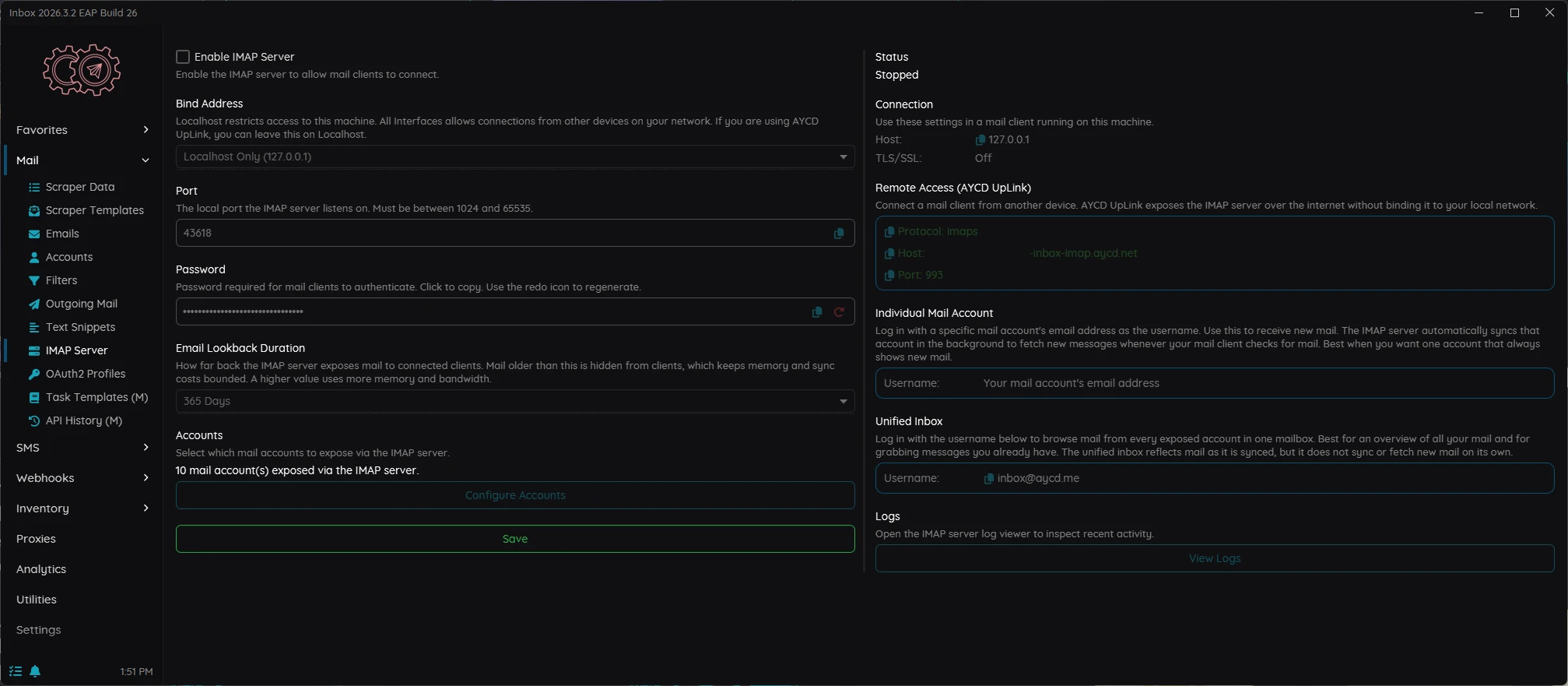
AYCD's Mail → IMAP Server page. For a Local setup, use the Connection details (Host, Port) and the generated Password. For UpLink, use the Remote Access (AYCD UpLink) panel on the right (Host and Port 993). The Individual Mail Account and Unified Inbox sections show which username to use for each mode.
Step 2. Open the Add Account wizard in Ordara
In Ordara, go to the Email Accounts tab and click Add Account.

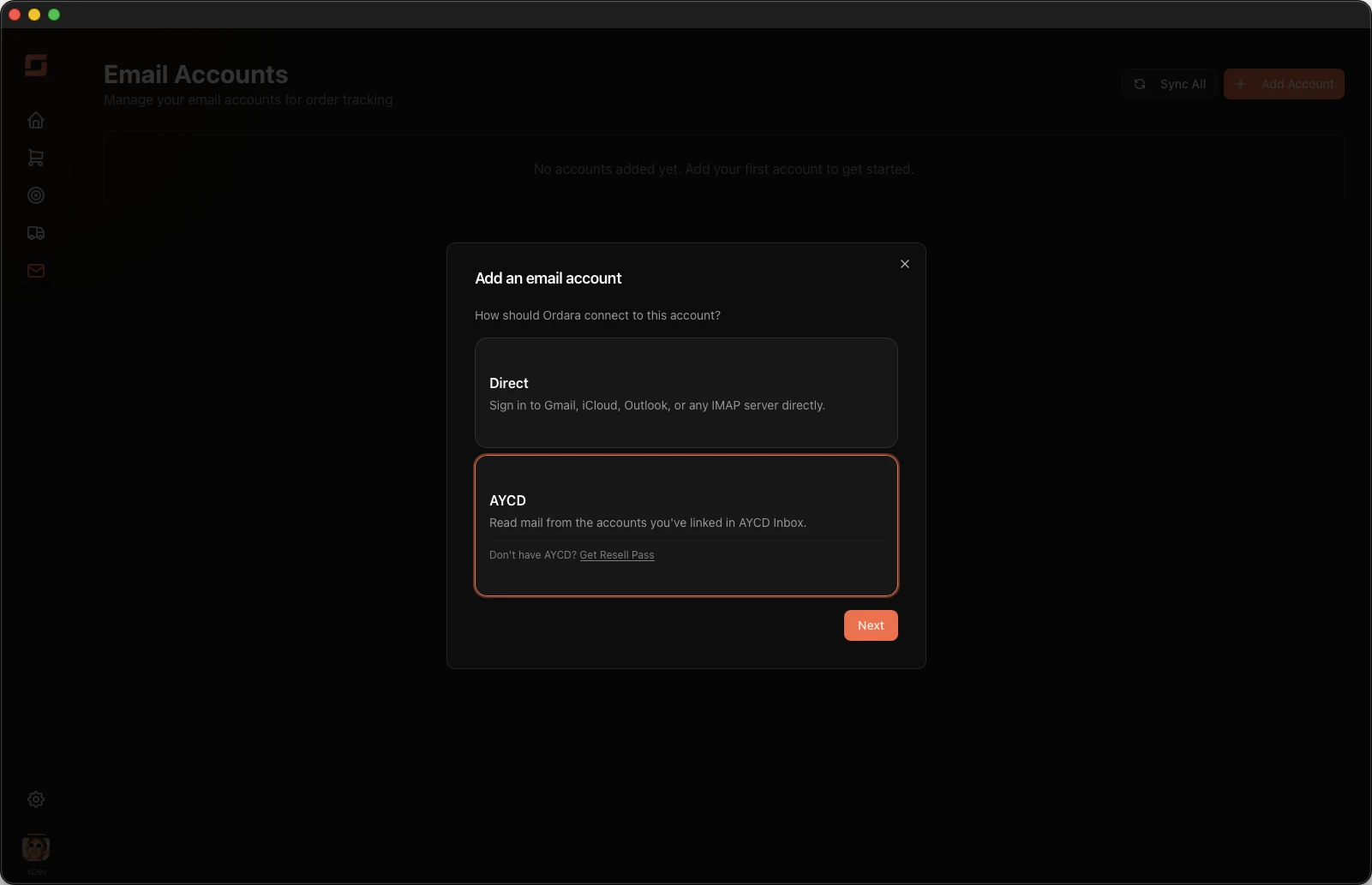
Step 3. Choose AYCD
On the first step of the wizard, choose AYCD (rather than Direct).
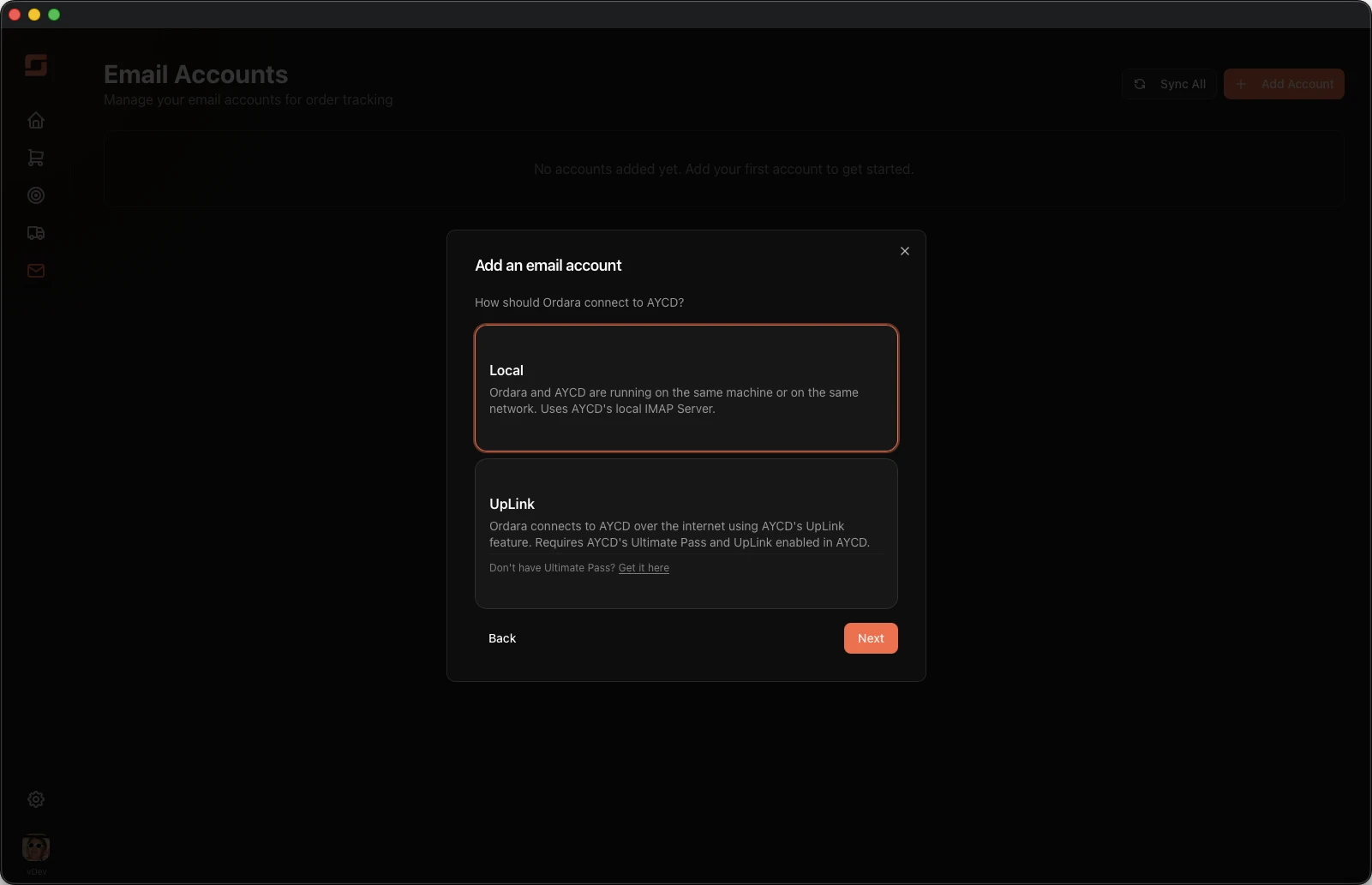
Step 4. Choose Local or UpLink
Pick Local if Ordara and AYCD share a machine/network, or UpLink for remote access (Ultimate Pass required).
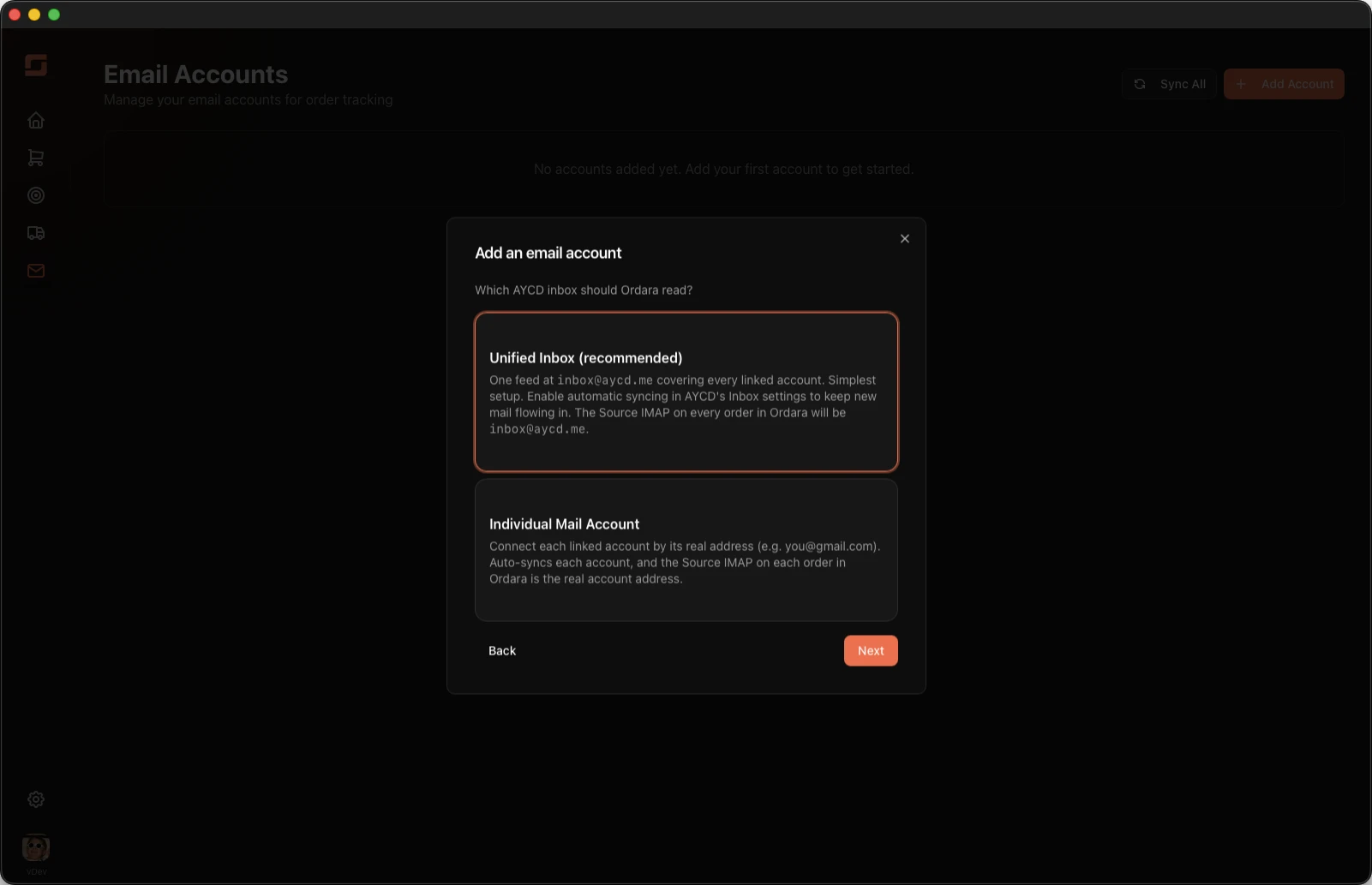
Step 5. Choose Unified or Individual
Pick Unified Inbox (recommended) or Individual Mail Account.
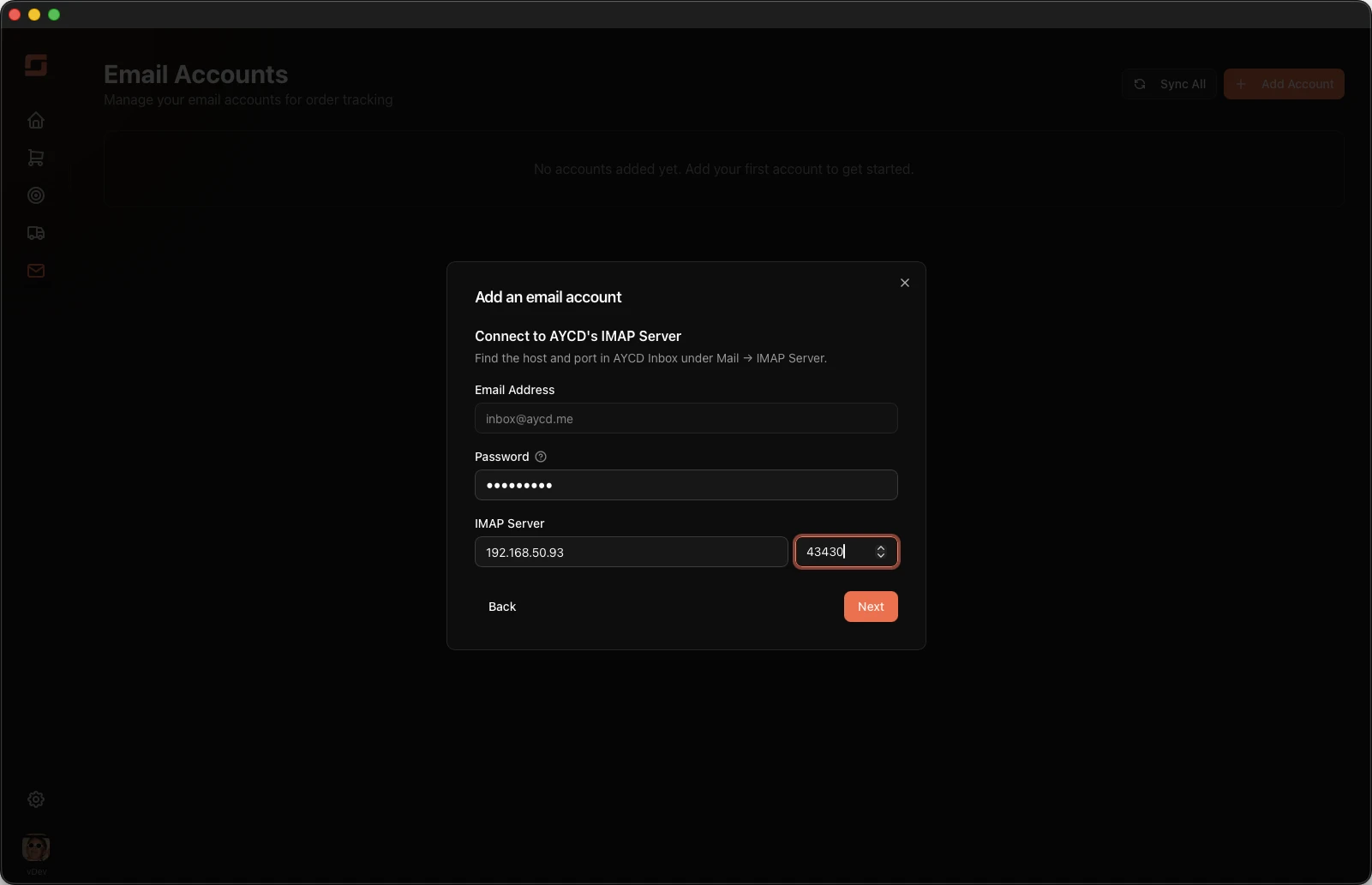
Step 6. Enter the connection details
Fill in the details from Step 1:
| Field | Local | UpLink |
|---|---|---|
| Email Address | [email protected] for Unified (locked); your real address for Individual | same |
| Server / Host | AYCD machine's local IP, e.g. 192.168.1.50 | UpLink host, e.g. your-uplink-host.aycd.net |
| Port | the port from AYCD's IMAP Server, e.g. 43217 | 993 (fixed) |
| Password | the password AYCD generated in its IMAP Server settings | same |
Ordara sets the right security/encryption automatically for the location you chose — there's nothing else to configure.
Step 7. Confirm
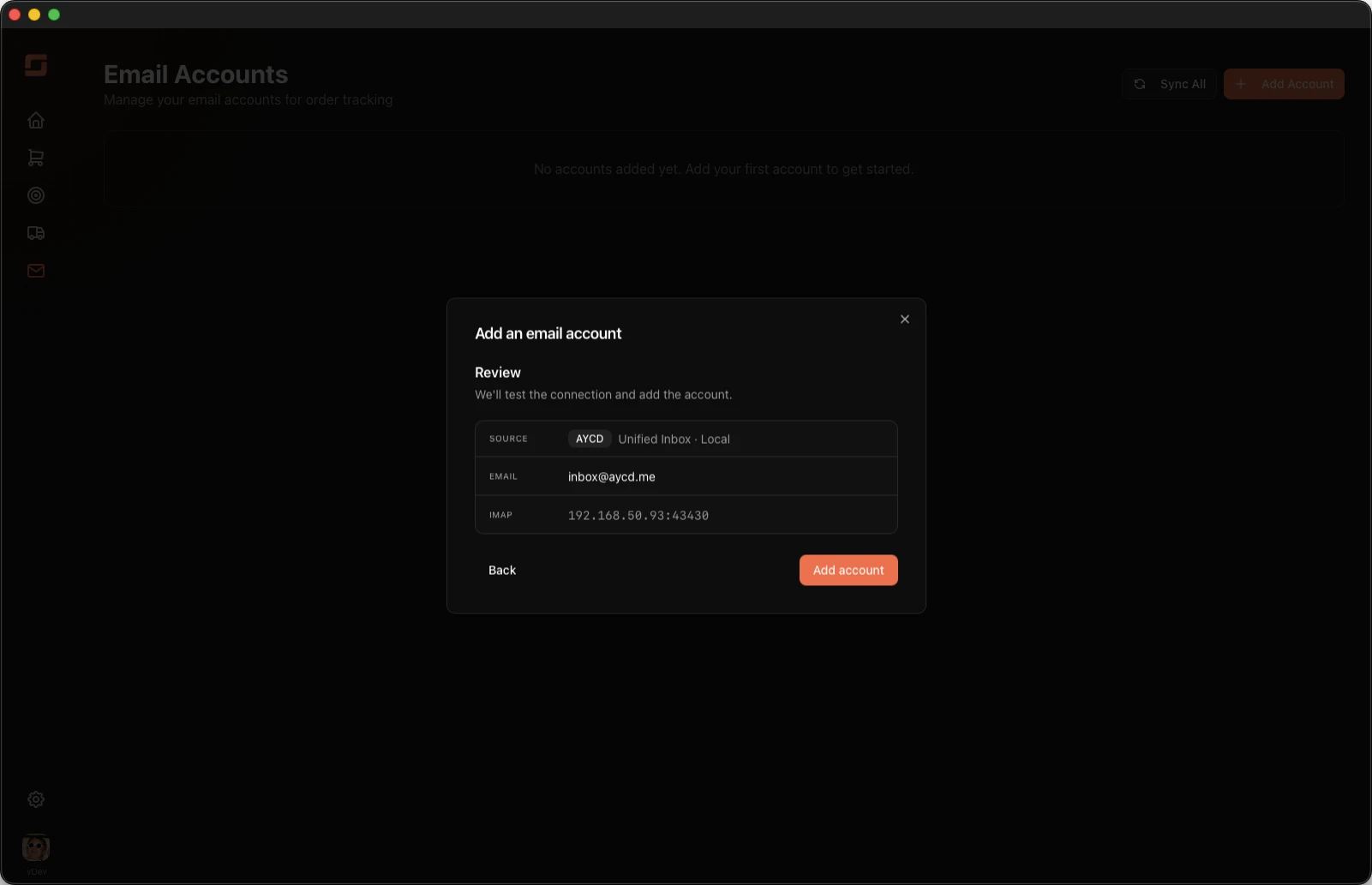
Review the summary and click Add account. If there's a conflict with an existing account, Ordara tells you here (see below). Otherwise, Ordara tests the connection and starts the initial sync.
After setup: syncing and the Scan Back Date
Once connected, Ordara syncs from AYCD on its normal schedule and applies your Scan Back Date — but only against mail AYCD already holds.
If older orders aren't showing up, the fix is usually on the AYCD side: make sure AYCD has scanned back far enough and is keeping the relevant accounts synced. Adjusting Ordara's Scan Back Date alone won't help if the mail isn't in AYCD yet.
TIP
If you just connected AYCD, give the initial sync a few minutes — and remember Ordara can only pull as fast and as far back as AYCD has fetched.
Conflicts and warnings
To prevent the same order being imported twice, Ordara checks new accounts against the ones you already have:
- Blocked — Unified and Individual together. You can't connect AYCD's Unified inbox and the same data as individual mailboxes — the unified feed already contains everything. Pick one.
- Blocked — AYCD and direct for the same mailbox. If
[email protected]is already connected directly and you try to add it through AYCD (or vice versa), Ordara blocks it. It's the same mailbox over two routes. - Warning — AYCD Unified alongside a direct account. Because the unified inbox might already include that mailbox, Ordara shows a warning and asks you to confirm. (This is exactly the situation the start-fresh recommendation avoids.)
Removing or switching later
You can remove an AYCD account from the Email Accounts tab just like any other account.
WARNING
Removing an account deletes the orders and data Ordara parsed from it. If you're only switching modes (e.g. Unified → Individual) you can re-add and Ordara will re-scan from AYCD — but the orders are rebuilt from whatever AYCD currently holds.
See also
- Email Accounts — connecting mailboxes directly (without AYCD)
- Settings — Scan Back Date and Full Sync
- Sync Issues — when orders aren't appearing