
Appearance
Orders
The Orders page lists every order Ordara has read from your connected email accounts, across all retailers. Each order is built from the retailer's emails: confirmation, shipping, delivery, and cancellation.
Orders shows each purchase and its status from the retailer's emails. To follow individual packages and carrier scans, use Tracking.
Viewing Orders
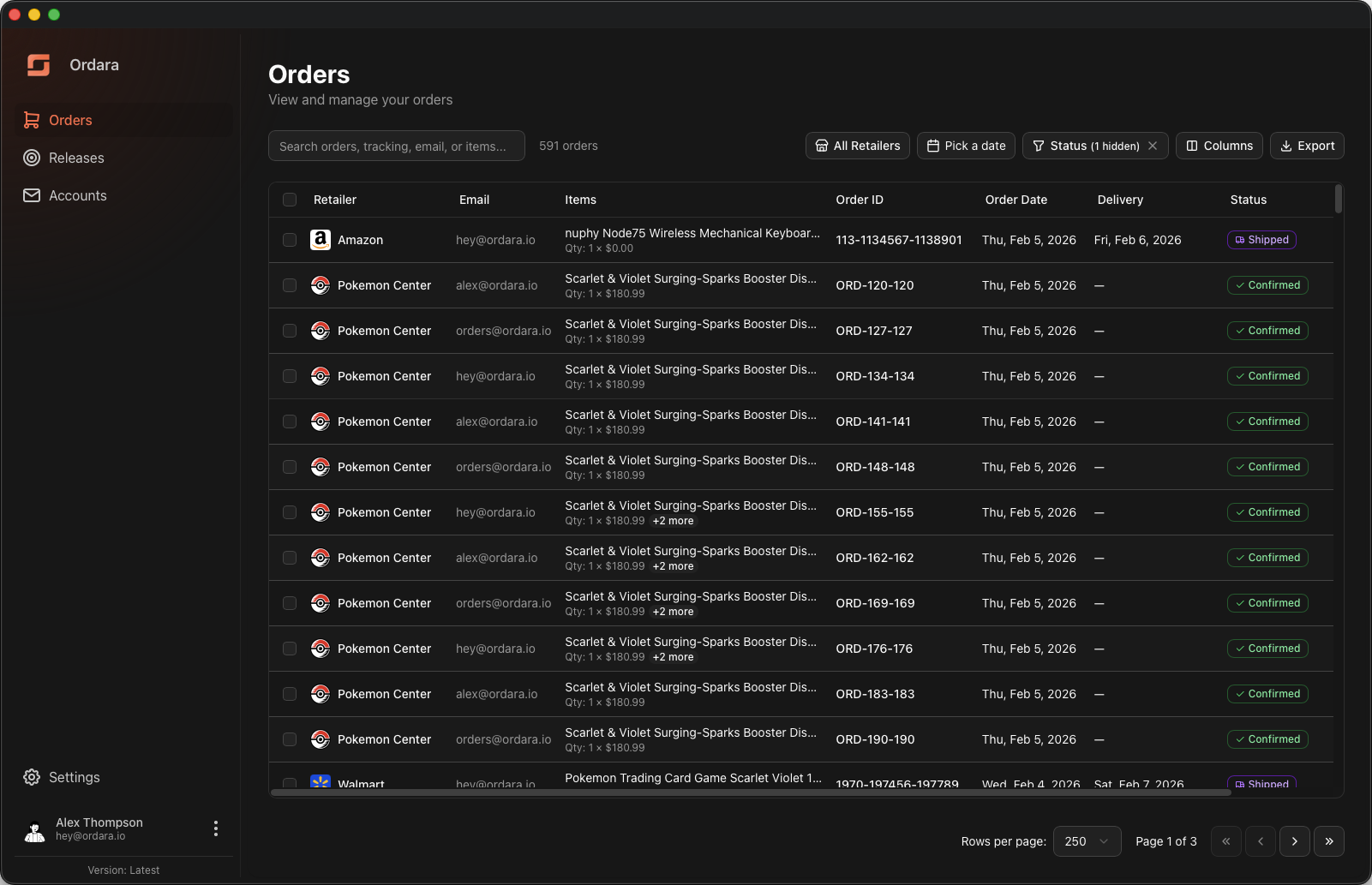
The table shows these columns:
- Retailer: the store the order came from.
- Source Email: the connected email account the order was read from.
- Email: the customer email address on the order.
- Items: the products in the order.
- Order ID: the retailer's order or confirmation number.
- Order Date: when the order was placed.
- Delivery Date: the latest delivery date among the order's shipments, or the latest estimate if nothing has been delivered yet.
- Address: the shipping or pickup address.
- Status: the order's progress, for example Confirmed, Shipped, Delayed, Delivered, or Cancelled. Pickup orders show Preparing, Ready to collect, and Collected instead. An order with several shipments shows progress such as Shipped (1/2) or Delivered (1/2).
- Total: the order total.
To open an order, click the three-dot menu at the end of the row, or right-click the row, and select View Details. The same menu offers Go to Release for orders that belong to a release.
When a retailer email names the ship-to recipient, View Details shows the name above the address. The Address column shows only the address. Ordara takes the name only from the email's ship-to section, never from the greeting or the email account. Existing orders gain the name when the email is imported or re-scanned.
If a ship-to address starts with a routing code or unit before the street, the Address column shows that prefix together with the street. View Details shows the full address.
Customizing Columns
Click Columns to show or hide Source Email, Email, Items, Order Date, Delivery Date, Address, Status, and Total. Retailer and Order ID are always shown. Ordara remembers your choice.
Sorting
Click a column header to sort by that column. Click it again to reverse the order. Hold Shift and click more headers to sort by several columns. When sorting by address, orders with no address stay at the bottom in both directions.
Filtering Orders
The controls above the table narrow the list:
- All Retailers: show one retailer only.
- Pick a date: limit the list to orders placed in a date range.
- Status: show or hide statuses (Confirmed, Preparing, Shipped, Ready to collect, Delayed, Delivered, Collected, Cancelled, Unknown), and turn on Show Archived.
- Cancellation: show orders by cancellation state: None, Partial, Full, Cancellation unmatched, or Confirmation missing.
You can combine filters. For example, you can show only delivered Amazon orders from the last 30 days.
The two incomplete cancellation states mean:
- Cancellation unmatched: Ordara found cancellation details but could not match them to items in the order.
- Confirmation missing: Ordara received a cancellation before it found the matching confirmation email.
TIP
Exports follow your filters. Set your filters first, then export. See Exporting.
Searching
Type in the search box to find orders by order ID, retailer, customer or source email, shipping address, product name, or tracking number.
Selecting Orders
Select orders to export or archive several at once.
- Click a row to select only that order. Click it again to clear it.
- Ctrl+click (Cmd+click on macOS) adds or removes a single order.
- Shift+click selects every row between the last selected row and the one you click.
The checkbox in the table header selects or clears every order on the current page. Your selection is kept when you change pages or filters, so you can collect orders from several pages before you act on them.
Archiving
Archiving hides an order from the default list without deleting it. Select one or more orders and choose Archive from the three-dot or right-click menu.
To see archived orders, open the Status filter and turn on Show Archived. To restore an order, select it and choose Unarchive.
Archiving an order also hides its shipments from Tracking and stops Ordara from checking them in the background.
Confirming Delivery or Collection
Sometimes a delivery or pickup confirmation email never arrives, even though you received the order. Once an order has shipped, you can choose Mark as delivered. For a pickup order that is Ready to collect, choose Mark Collected.
Open the order's three-dot or right-click menu, or open its details, and select the action. Check the remaining non-cancelled items and confirm that you received or collected all of them.
Marking an order delivered or collected:
- counts every remaining item as delivered or collected in Orders, Releases, Inventory, and exports;
- stays in place when later email scans run;
- does not change the shipments' carrier status. On the Tracking page they show the Order manually marked delivered badge instead; and
- can be undone with Mark Not Delivered or Mark Not Collected.
Undoing it returns the order to the status Ordara last detected from emails and tracking. The action is not offered for orders that are already delivered or cancelled, have only cancellation evidence, or have unresolved cancellation details.
You can also mark or unmark an order from its details in the Web Dashboard while the desktop app is online.
When a Cancellation Arrives First
If a cancellation email arrives before its confirmation email, Ordara creates a Cancellation received order, provided the email includes a reliable order number. This order is incomplete evidence, not a final cancelled status.
The order appears under Confirmation missing. Its original quantity, price, and total can remain unknown. If the matching confirmation email arrives later, Ordara completes the same order and applies the cancellation automatically.
If the confirmation is already in the connected mailbox but this state remains, follow the Confirmation missing troubleshooting steps.
Order Details
View Details opens a panel with:
- the order ID, total, delivery or collection date, address with recipient name, customer email, and source email account;
- each shipment with a Preparing, Shipped, or Delivered badge, its shipped and delivered dates, the tracking number (plus a USPS Local tracking number after a handoff), and the shipping service. A copy button sits next to each number;
- each item with its quantity, unit price, and any cancelled quantity;
- for a Cancellation received order, the products and quantities from the cancellation email; and
- whether the order was manually marked delivered or collected, with the button to undo it.
The shipment badges here come from shipped and delivered dates only. For the carrier's latest scan, such as Out for Delivery or Exception, open the shipment on the Tracking page.
Refresh from Email
If an order lists items you didn't buy, is missing items, or has wrong details, click Refresh from email next to Items, or choose it from the order's ⋯ or right-click menu. This often happens when an older version of Ordara misread an email. Ordara finds the order's emails in its email account again, reads them with your current version, and shows what would change: items to remove or add, the order total, other details such as status, dates, or address, and new tracking numbers.
Click Update order to apply the changes, or Cancel to leave the order as it is. Releases that include the order update too. If none of the emails found state a price, the total shows as Unknown.
Some items are kept even when the emails no longer list them:
- an item with a recorded cancellation; and
- an item whose inventory link you changed, for example by linking it yourself or setting a cost override.
Nothing changes if Ordara can't find the order's emails, for example because they were deleted.