
Appearance
Releases
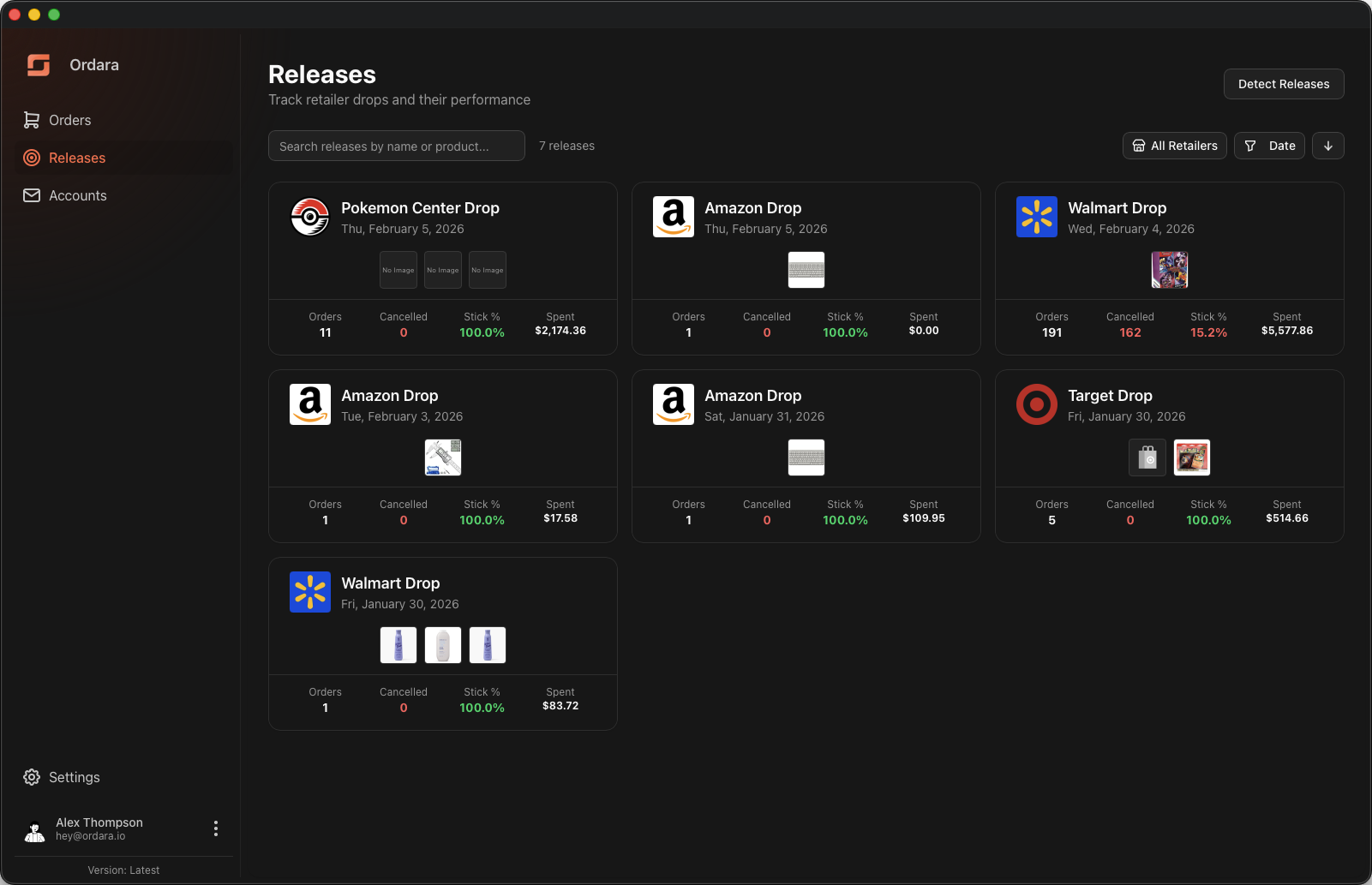
A release groups your orders from one retailer on one date, such as a product drop or launch. It shows how many orders and units you secured, what has shipped, and what is still outstanding.
Release Detection
Ordara groups new orders into releases by retailer and order date after each email sync. No setup is needed.
To pick up older orders or change the grouping, click Detect Releases on the Releases page. Choose a Lookback Period (1, 3, 6, or 12 months) and the Minimum Orders a group needs to become a release, then click Detect Releases. Existing releases also pick up any newly synced orders.
On the Releases page you can search by release name or product, filter by retailer, sort by Date, Unit stick, Total Orders, or Active spend, and archive releases. Archiving a release also archives all of its orders. Unarchiving it restores them. Use Show Archived to find archived releases.
Release Details
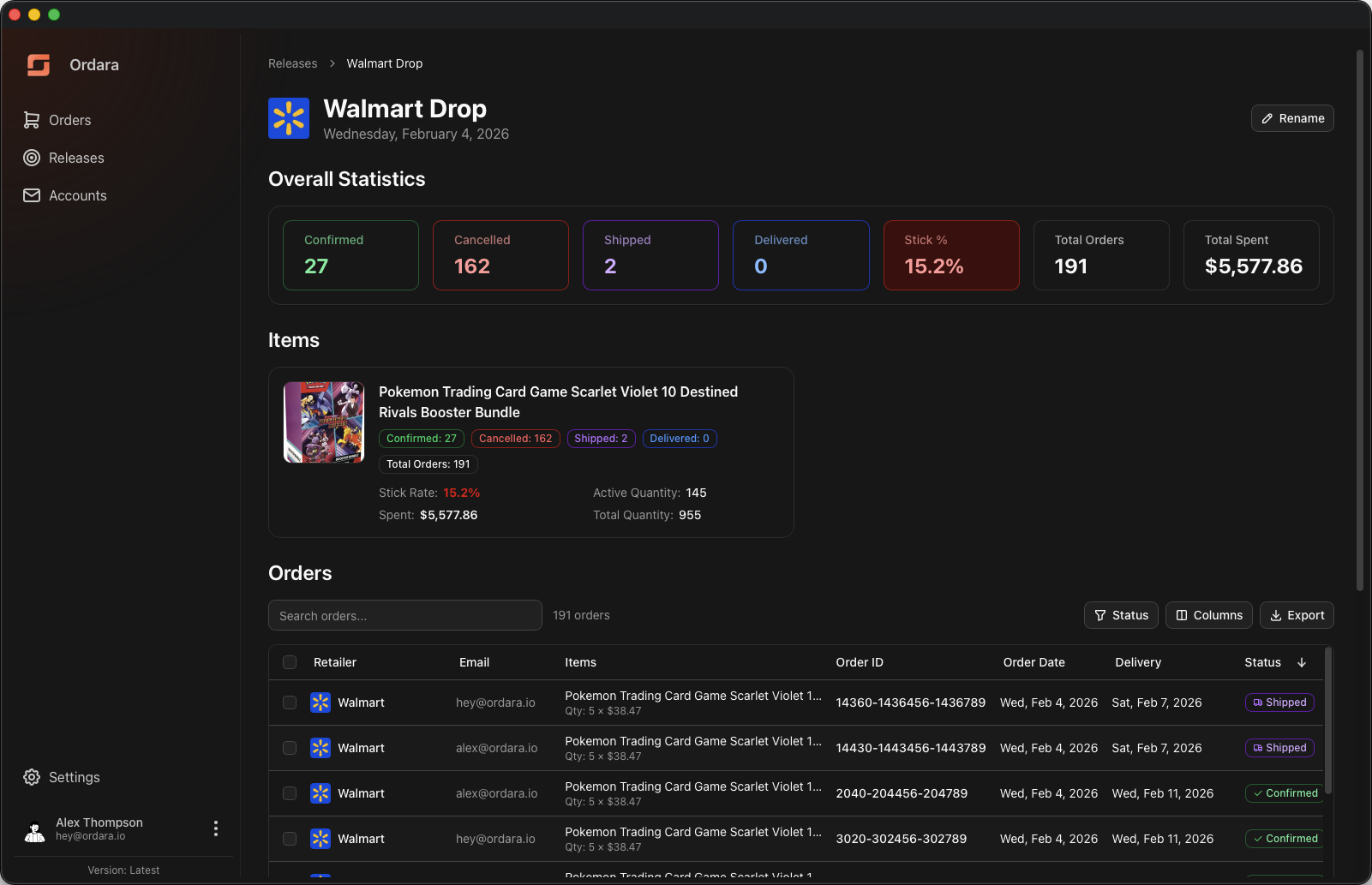
Open a release to see how the drop performed. At the top are the Orders count, Units kept (the unit stick rate: the share of known ordered units that remain active), Active spend, and counts of orders under Outcomes. Click an outcome to filter the orders table below. Use Rename to change the release name and Share Results to create a shareable image.
If a confirmation email is missing, Ordara does not count unknown quantities or spend as zero. It shows the known counts, or Unknown, until it has enough evidence.
Incomplete Evidence
Release details show these states separately from normal outcomes:
- Confirmation missing: a cancellation arrived before the matching confirmation. Ordara updates the order automatically if the confirmation appears later.
- Cancellation unmatched: cancellation details could not be matched to items in the order. The order is left out of unit and spend totals.
- Quantity unknown: the cancellation email did not include a reliable quantity, so the order is left out of unit stick.
- Release unassigned: Ordara could not pick one safe release for an order that has only a cancellation email.
Items
Each product in the release has a card with its own stats and stick rate. Click a card to filter the orders table to orders containing that product, including orders where it appears only in a cancellation email.
Release Orders Table
The orders table works like the main Orders table: you can search, filter by status and cancellation, choose columns, sort by several columns, select orders across pages, and export the release's orders to CSV.
Sharing Results
Share Results makes an image in one of three styles: Cover, Fan, or Grid. The image shows up to six products, with your highest-spend products first. If the release has more than six, the last slot sums up the rest as +N more.
To choose which products appear, click Products and tick up to six. The image shows exactly those products, still with the highest spend first. Unit stick, units kept, orders, and active spend always cover the whole release, whichever products you show. Ordara remembers your choice for each release; Reset to top products goes back to the automatic pick.