
Appearance
Managing Inventory
Day-to-day, inventory needs three things from you: record sales, correct groupings when Ordara guesses wrong, and adjust quantities when reality diverges from your records.
The product list
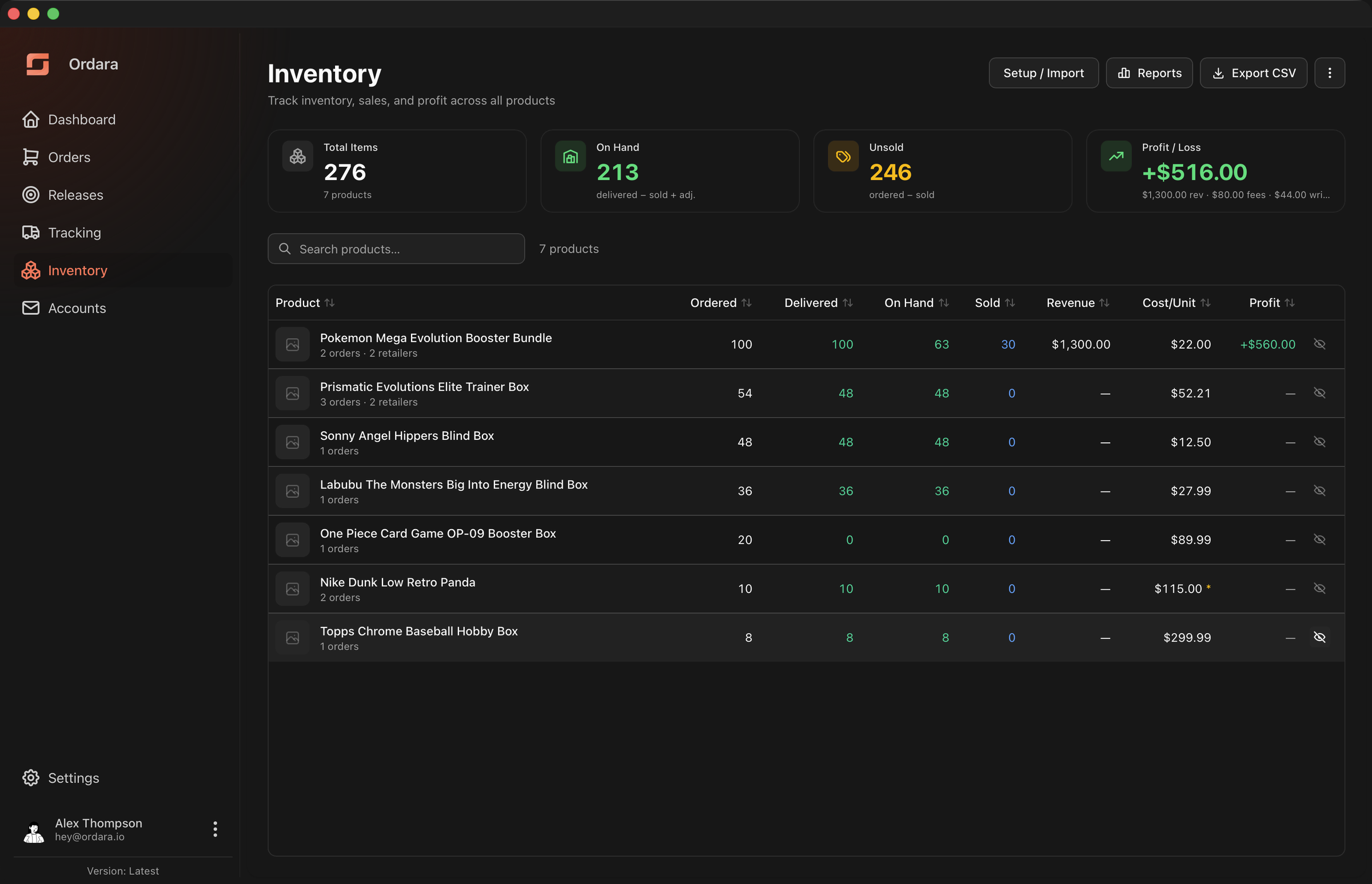
Four cards summarize your whole portfolio:
- Total Items — every unit you have ordered
- On Hand — what you physically hold
- Unsold — ordered but not yet sold, including units still in transit
- Profit / Loss — revenue minus cost of goods sold minus fees minus write-offs, across all time. It is the same formula as the net profit in Profit & Loss Reports, so a statement covering your whole history matches this card — as long as nothing behind it is hidden. Hidden products drop out of this card but stay in the report, so the two diverge by whatever a hidden product contributed. Note the card is also not the same formula as the Profit column in the table below, which leaves write-offs out.
The table below shows one row per product: Product, Ordered, Delivered, On Hand, Sold, Revenue, Cost/Unit, and Profit. Click any column header to sort. Search filters by product name. Click a row to open the product.
Markers appear in two of those columns and mean different things.
On Cost/Unit, about the cost figure:
- No cost basis — no cost left to value this product's units against.
- Missing purchase price — a contributing line carried no price and Ordara knows no part of the cost.
- An asterisk on a figure — the cost is real but incomplete, because a purchase is unpriced or still in Needs review. Hover for which.
On Profit, about the total — and only when the total can actually be wrong. An asterisk there always means some sold units are not yet valued; hover it for which of the three reasons applies, and read the colour for how bad it is:
- Gain in grey rather than green — Ordara knows no part of the cost, so those units went in at $0. The figure is overstated; the grey says do not read it as a margin.
- Gain still green — the cost is real, just incomplete, because a purchase is unpriced or in Needs review. The error runs either way: a cheaper unreviewed line means profit is understated.
A product can carry a Cost/Unit marker and a trustworthy Profit at once — if every sale was valued when recorded, losing the cost basis afterwards cannot move the total. See Accuracy & Limitations.
The product page
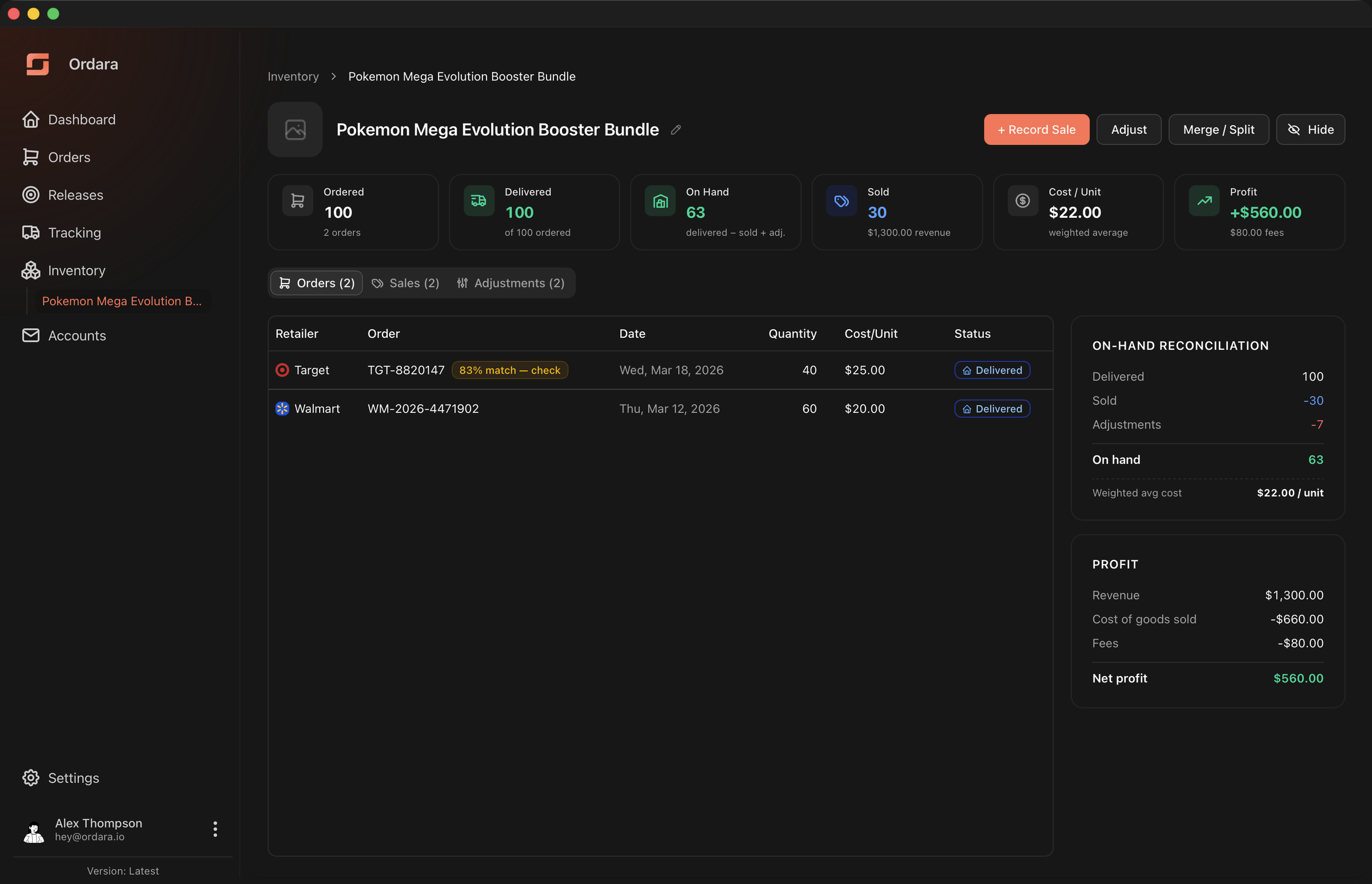
Six figures across the top: Ordered, Delivered, On Hand, Sold, Cost/Unit, and Profit. The pencil beside the product name edits the name and notes.
The right-hand rail shows the arithmetic behind those figures as two running ledgers — on-hand reconciliation and profit — so you can always see how a number was reached. See How the Math Works.
Three tabs sit below:
- Orders — every order line grouped into this product
- Sales — everything you have recorded selling
- Adjustments — every quantity correction
Fixing a wrong cost
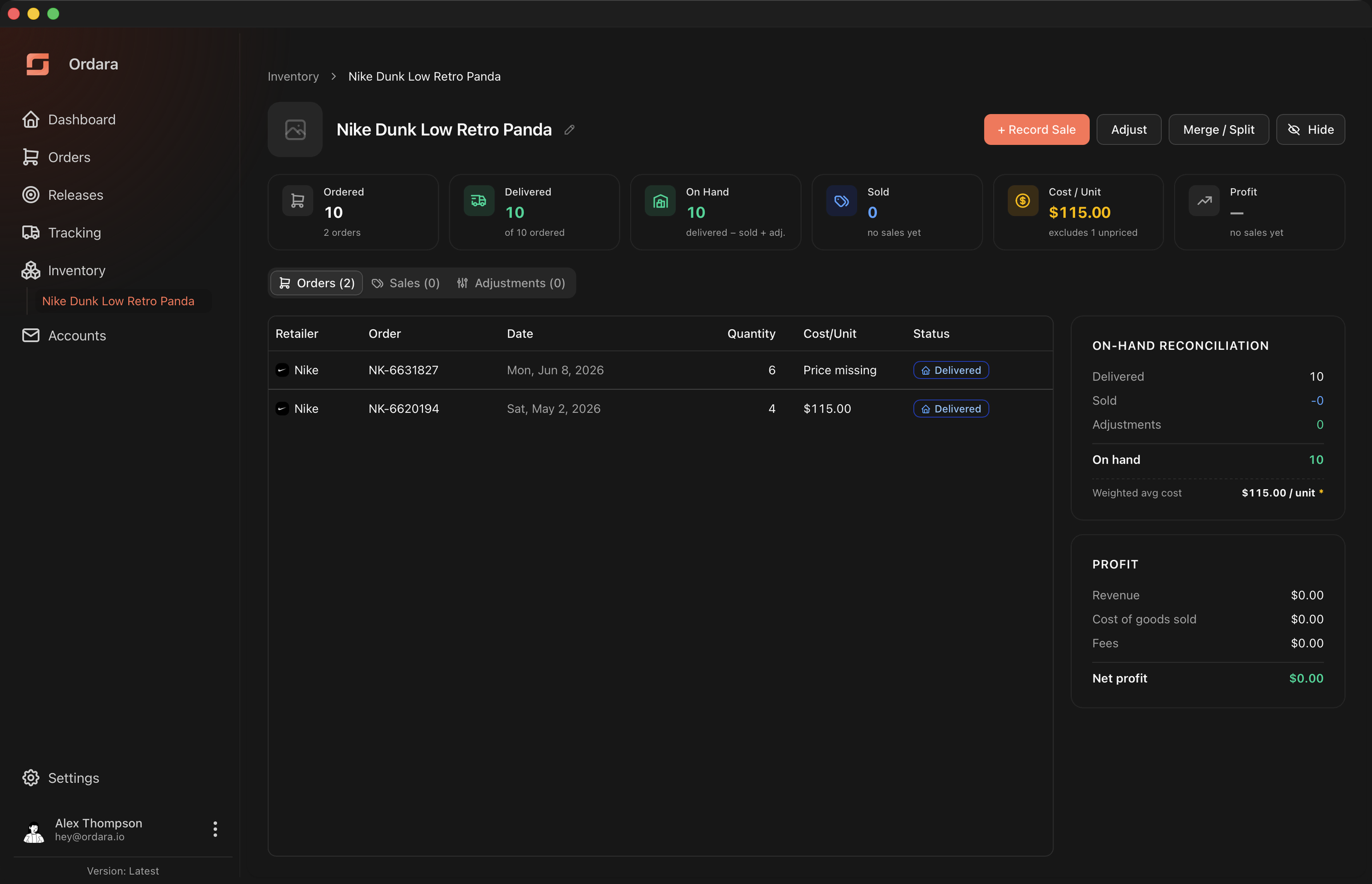
The Orders tab shows each line's retailer, order date, quantity, and cost per unit. Cost is editable — use it when a parsed price is wrong, when an email carried no price, or to fold your shipping cost into the unit cost. A line with no price is the one worth chasing: until you supply it, the product's costing stays open and nothing new freezes against it.
Editing changes only inventory's view. Your parsed order is untouched, and overridden lines are flagged.
A line the retailer partly cancelled shows its quantity as "N kept" with "M cancelled" beneath it — only the kept units count towards this product. A line with nothing left reads Cancelled.
Recording a sale
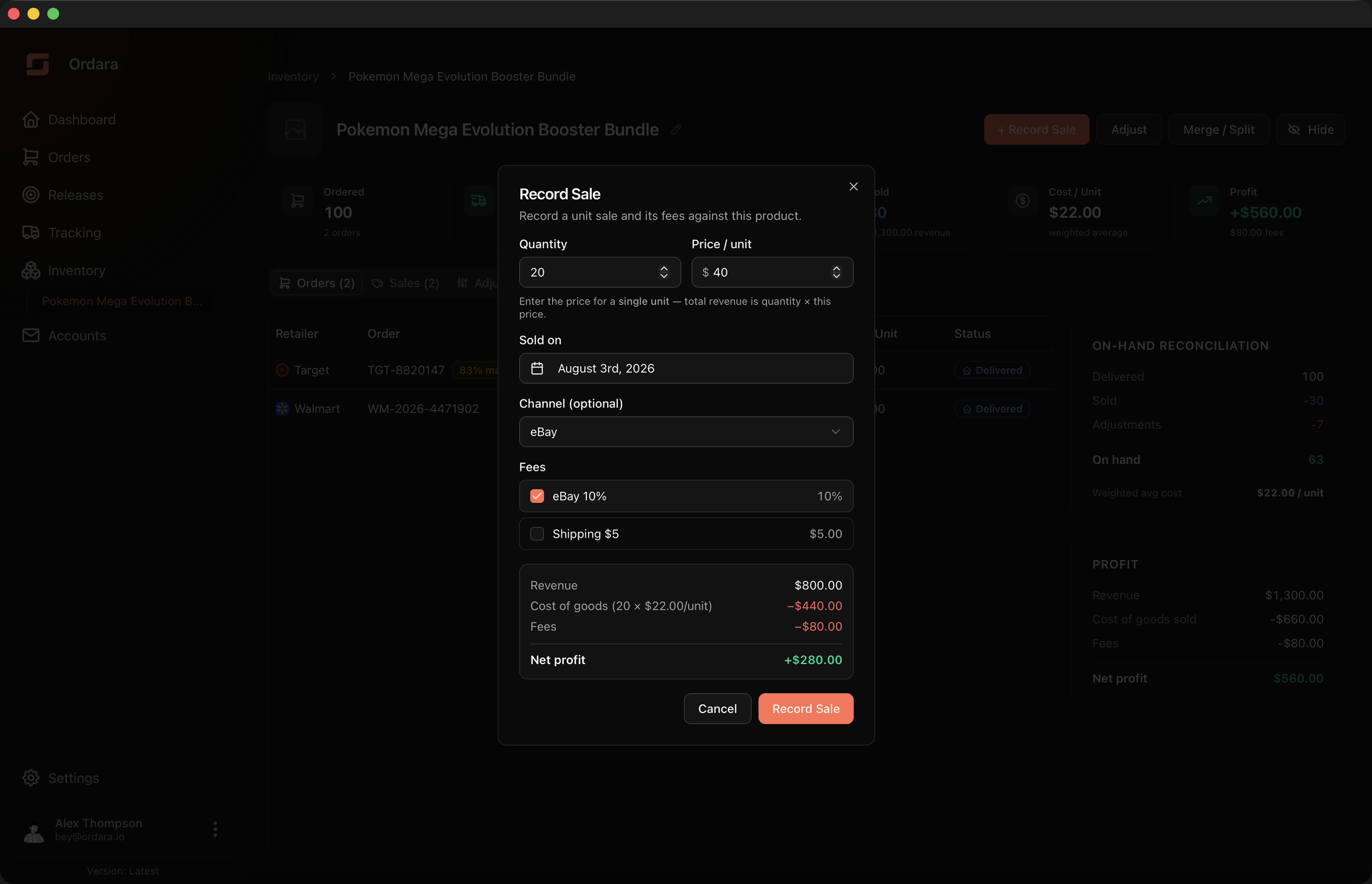
+ Record Sale on the product page opens the sale form:
- Quantity and Price / unit — what you sold, and for how much each
- Sold on — the sale date, which determines the Profit & Loss period it lands in
- Channel — eBay, TCGplayer, Whatnot, Mercari, Facebook, Local, or none. Optional, but it drives the revenue-by-channel breakdown in reports.
- Fees — tap your saved presets to apply them. There is no field for a one-off fee, so anything not covered by a preset needs a preset created for it first.
A live preview shows revenue, cost of goods sold, fees, and net profit before you save, and says when the cost behind it is provisional or incomplete.
The form requires a price above $0.00 and a sale date no later than today. A genuinely free unit cannot be recorded here — the backend accepts a zero price, but the form does not offer it.
Give the fee presets a moment on a cold open
Record Sale waits for your saved presets before it will submit, so a sale cannot silently be recorded with the marketplace cut left off. If they fail to load it offers a retry, and keeps whatever you have typed. It also offers Continue without preset fees, which lets you submit anyway — a deliberate escape hatch, so a preset problem never blocks recording a sale you actually made. The fees are simply absent from that sale.
Set up your fee presets once
Marketplace commission and shipping cost are the difference between a sale that looks profitable and one that is. Define them once under Settings → Inventory → Sale fee presets and they become one tap per sale.
Two can tick themselves. A preset tied to a channel is checked as soon as you pick that channel. A preset marked Default starts every sale checked — but only if it is not tied to a channel; on a channel-tied preset the Default flag does nothing, since the channel already decides. Either way they are ordinary checkboxes you can clear per sale.
Percentage fees are converted to a dollar amount when you save and frozen there, so editing a preset later never rewrites profit on sales you already recorded.
To correct a sale, delete it from the Sales tab and record it again. There is no separate refund concept — deleting removes its revenue and fees entirely.
Adjusting quantities
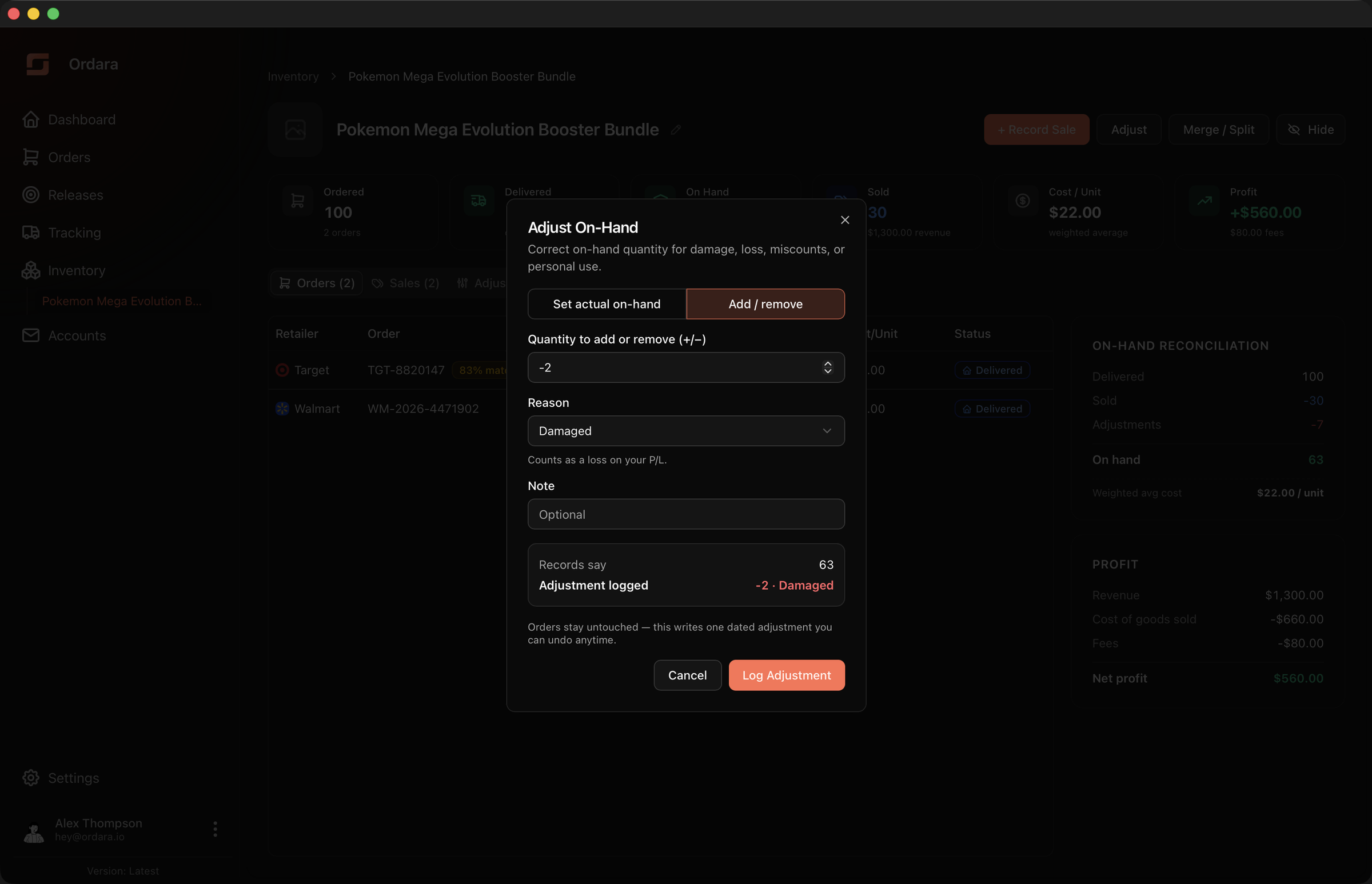
Adjust records the difference between your records and physical reality. Two ways to enter it:
- Set actual on-hand — enter what you counted, and Ordara works out the difference
- Add / remove — enter the change directly, positive or negative
Pick a reason: Damaged, Lost or stolen, Count correction, Personal use, or Other. A line under the dropdown tells you whether the reason you picked costs you anything. Add a note if you want one.
What the reason decides
Every adjustment moves your on-hand count by the amount you enter, whatever the reason. What the reason changes is whether units you removed are charged against profit:
| Reason | Removing units is charged as a loss? |
|---|---|
| Damaged | Yes |
| Lost or stolen | Yes |
| Other | Yes |
| Count correction | No — your records were wrong, nothing was lost |
| Personal use | No — you took the stock; that is a draw, not a business expense |
Adding units is never a loss, whichever reason you pick — there is nothing to charge. Only the negative ones are worth thinking about.
The Profit figure on this page never moves either way: it is revenue minus cost of goods sold minus fees, and a write-off is a loss on inventory rather than on a sale. The charge shows up on the portfolio Profit / Loss card and on Profit & Loss Reports.
Example: adjust 5 units as Damaged at $22 each. The product's Profit does not change, but the Profit / Loss card drops by $110 and your next statement shows a $110 write-off. Record the same 5 as Count correction or Personal use and nothing is charged anywhere.
Adjustments are a log, not an edit. Each one is a dated entry on the Adjustments tab, and deleting it reverses it exactly. The date cannot be in the future — a write-off has to land in a period that has actually happened.
Needs review
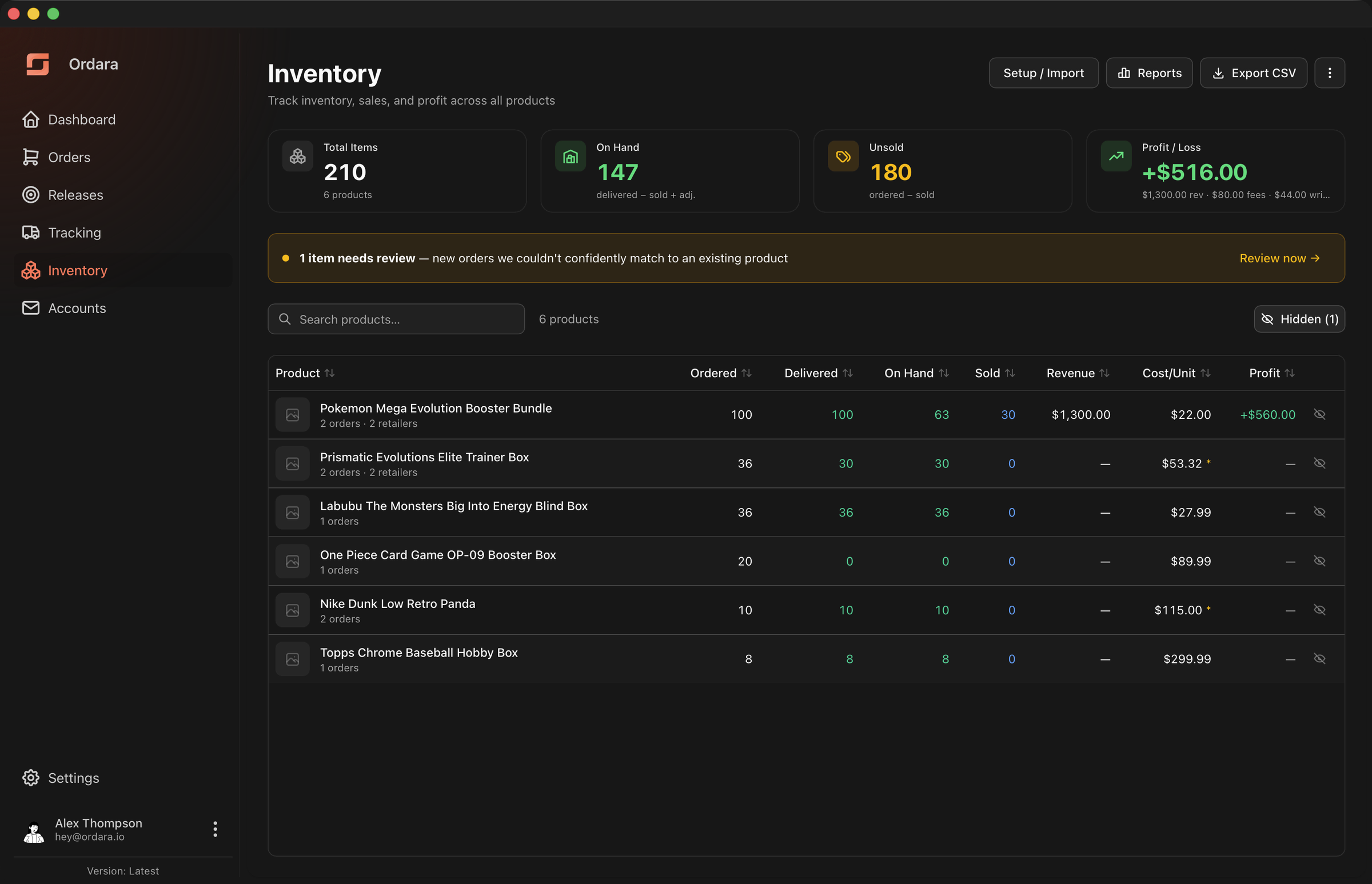
When a new order item looks like an existing product but not confidently enough to attach on its own, it waits here and a banner appears on the Inventory page.
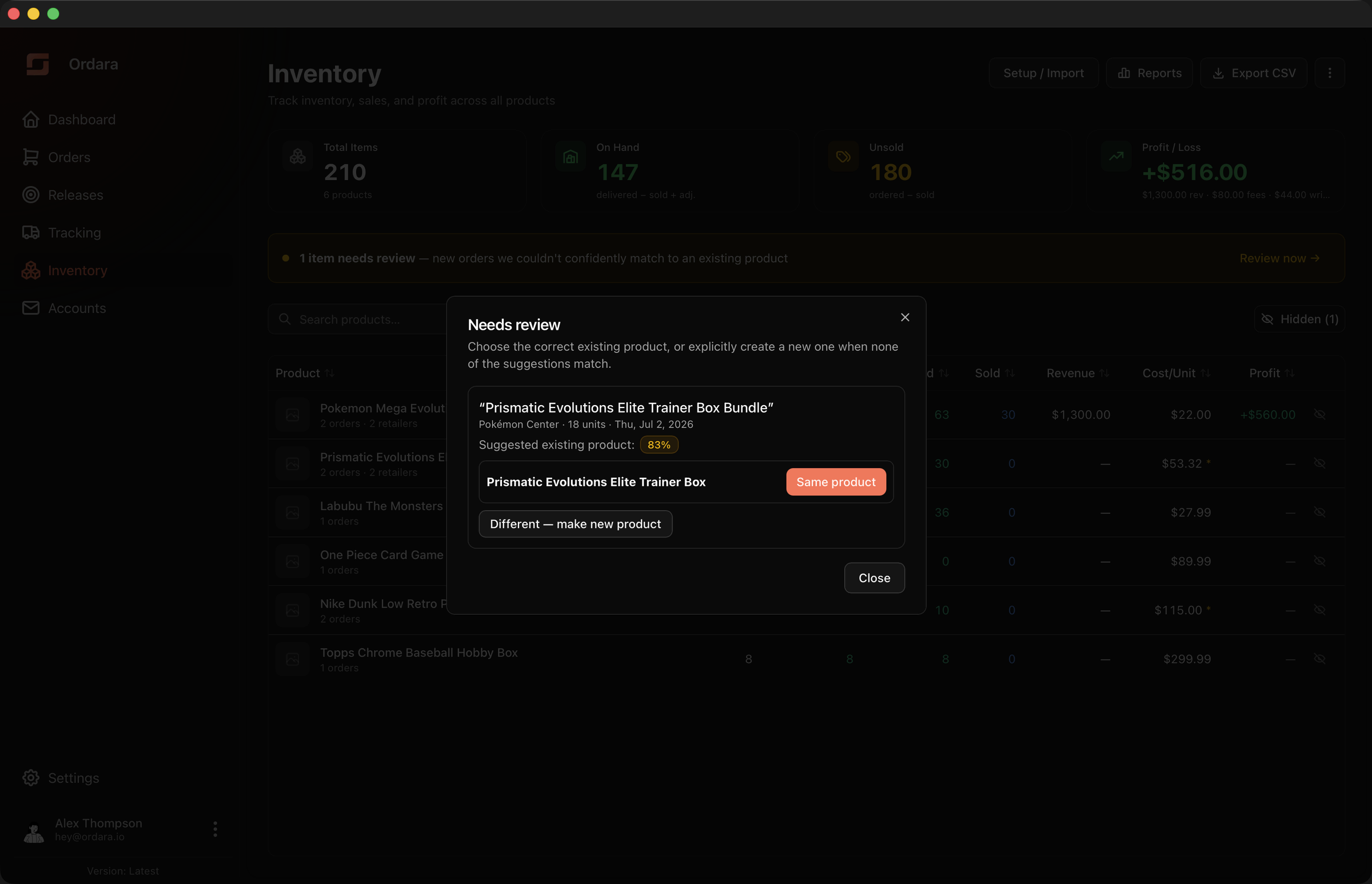
Each entry shows the incoming item, the product or products Ordara thinks it matches, and a confidence percentage. An entry matched against a hidden product is badged Hidden product.
Where one product is proposed, confirm it or choose Different — make new product. Where several products tied for the best match, all of them are offered and you pick — a tie no longer forces you to reject and end up with a third product you did not want.
If the entry was already resolved elsewhere, Ordara calls it stale and refreshes rather than acting on the wrong link.
A pending item skews the product it is waiting on
The units are not counted anywhere until you resolve the entry — but the purchase is also left out of the matched product's weighted-average cost, while that product's unvalued units are priced from that average.
Its Cost/Unit is marked for as long as the line is pending. Whether anything else says so depends on there being something left to move: the Profit column, the portfolio card, the P&L and both CSV warnings speak up only while units are still priced from that incomplete cost. Add a pending line to a product whose transactions were all valued long ago and you see the Cost/Unit marker alone.
Resolving may not move even that. Different — make new product leaves this average untouched, and Same product shifts it only if the incoming price differs. See Accuracy & Limitations.
Merging and splitting
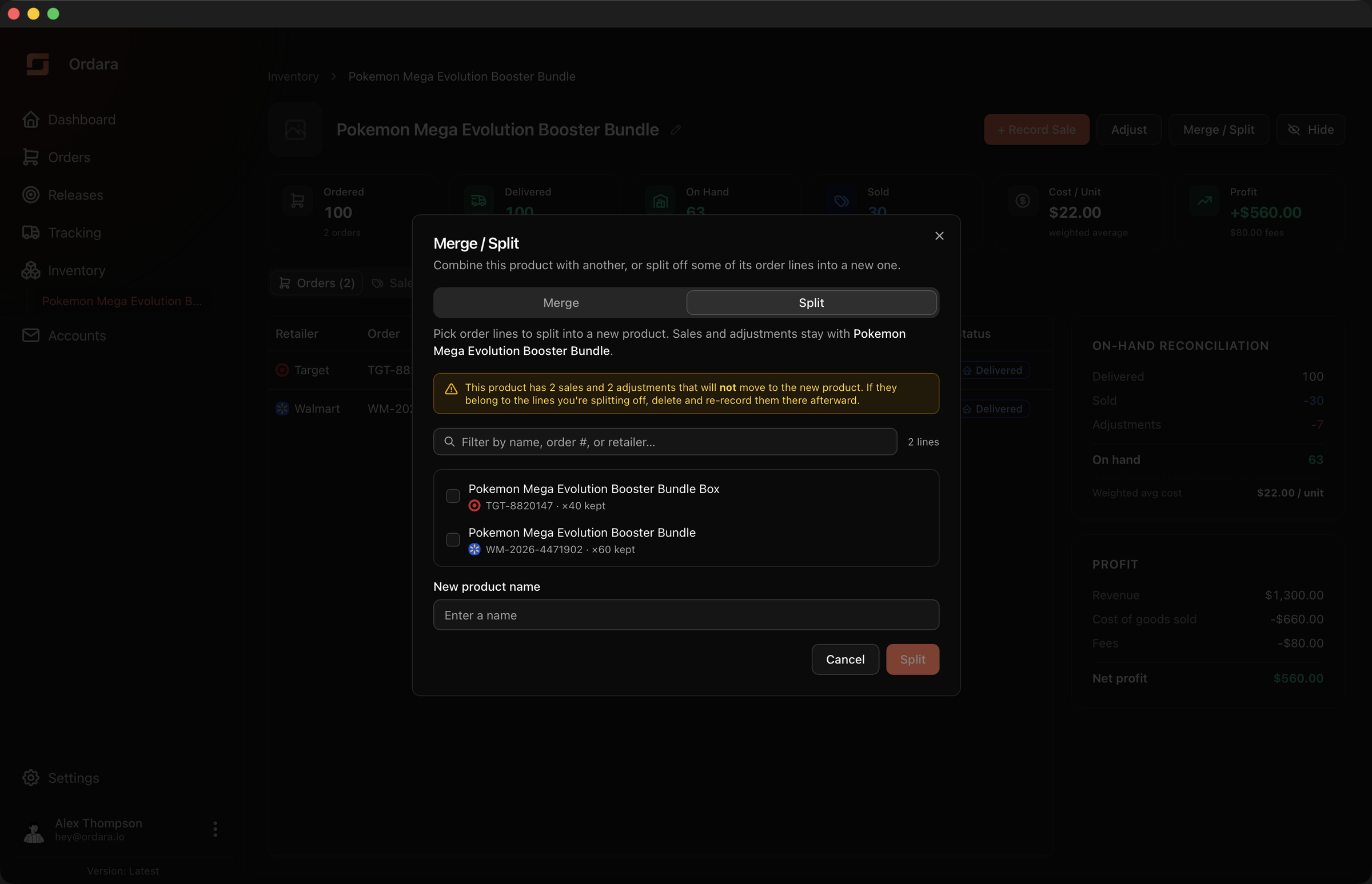
Merge / Split on the product page fixes grouping mistakes:
- Merge — combine this product into another. All of its orders, sales, and adjustments move across, and the emptied product is removed.
- Split — select order lines and break them out into a new product of their own. The new product needs a name, and you cannot move every line — that would leave an empty shell behind, so keep at least one line on the original.
A split also takes the name variants of the lines you moved, so a later order under one of those names attaches to the split-off product rather than drifting back. The decision sticks.
Neither operation destroys an order, sale, or adjustment — records only move, and every figure recomputes immediately on the products involved.
Split does not take sales or adjustments with it
Only the order lines you select move to the new product. Every sale and adjustment stays on the original product, even if the units they cover came from the batch you are splitting off. If any of them belong with the new product, delete them from the original's Sales or Adjustments tab and record them again on the new one.
This also means a merge cannot be undone, and the confirmation dialog says so before you commit. Splitting the order lines back out gives them their own product again, but the sales and adjustments that moved during the merge stay on the product you merged into. Re-record them on the split-off product if they belong there.
Hiding a product
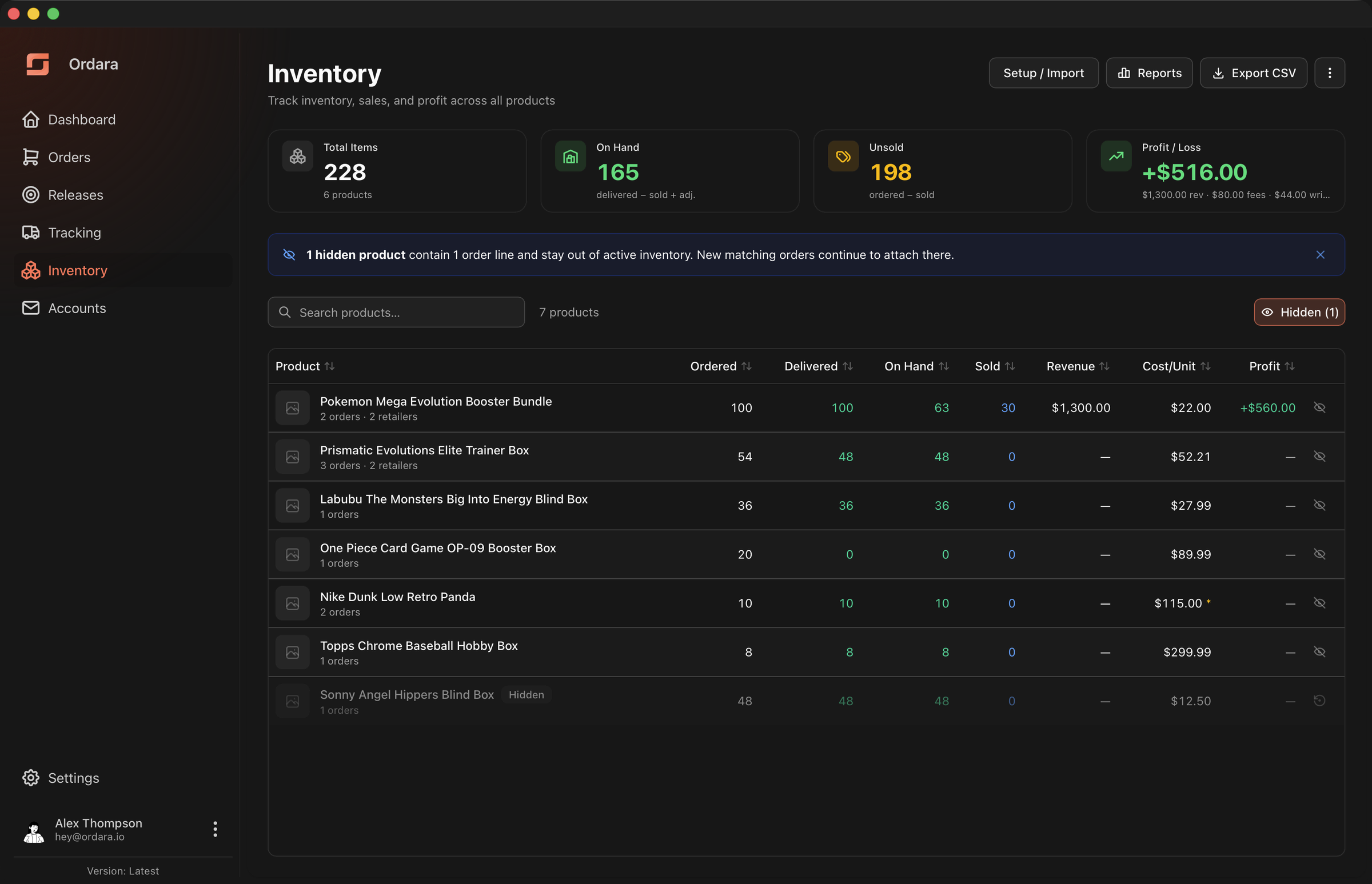
Some products do not belong in your working inventory — a personal purchase that got grouped in, a line you have finished selling, anything cluttering the list. Hide on the product page, or the eye icon on its row, takes it out of the way without deleting anything.
Hiding is reversible and lossless: order lines, on-hand units, cost overrides, sales and adjustments all stay as they were, and the confirmation counts them back to you first. What changes:
| Hidden product | |
|---|---|
| Inventory list and stat cards | Excluded |
| Inventory CSV export | Excluded |
| Profit & Loss Reports | Still included — hiding must not rewrite history. Warnings name it with a (hidden) suffix |
| Matching of new orders | Still active — a new order that matches will attach to it |
Because matching keeps running, the Inventory page shows a dismissible notice when hidden products are holding order lines. Dismissing it remembers the count, so it stays gone until your hidden products hold more lines than they did then — a new order attaching, or another product hidden.
To see them, use the Hidden toggle beside the search box; it appears once you have hidden something and remembers its position. Hidden rows are dimmed with a Hidden badge. Restore on the product page, or the restore icon on its row, puts it back intact.
Hiding is not deleting
There is still no delete for a single product — hiding is the closest thing, and the right tool when the product is real but unwanted. To start over, use Reset inventory; see Overview & Setup.
Exporting
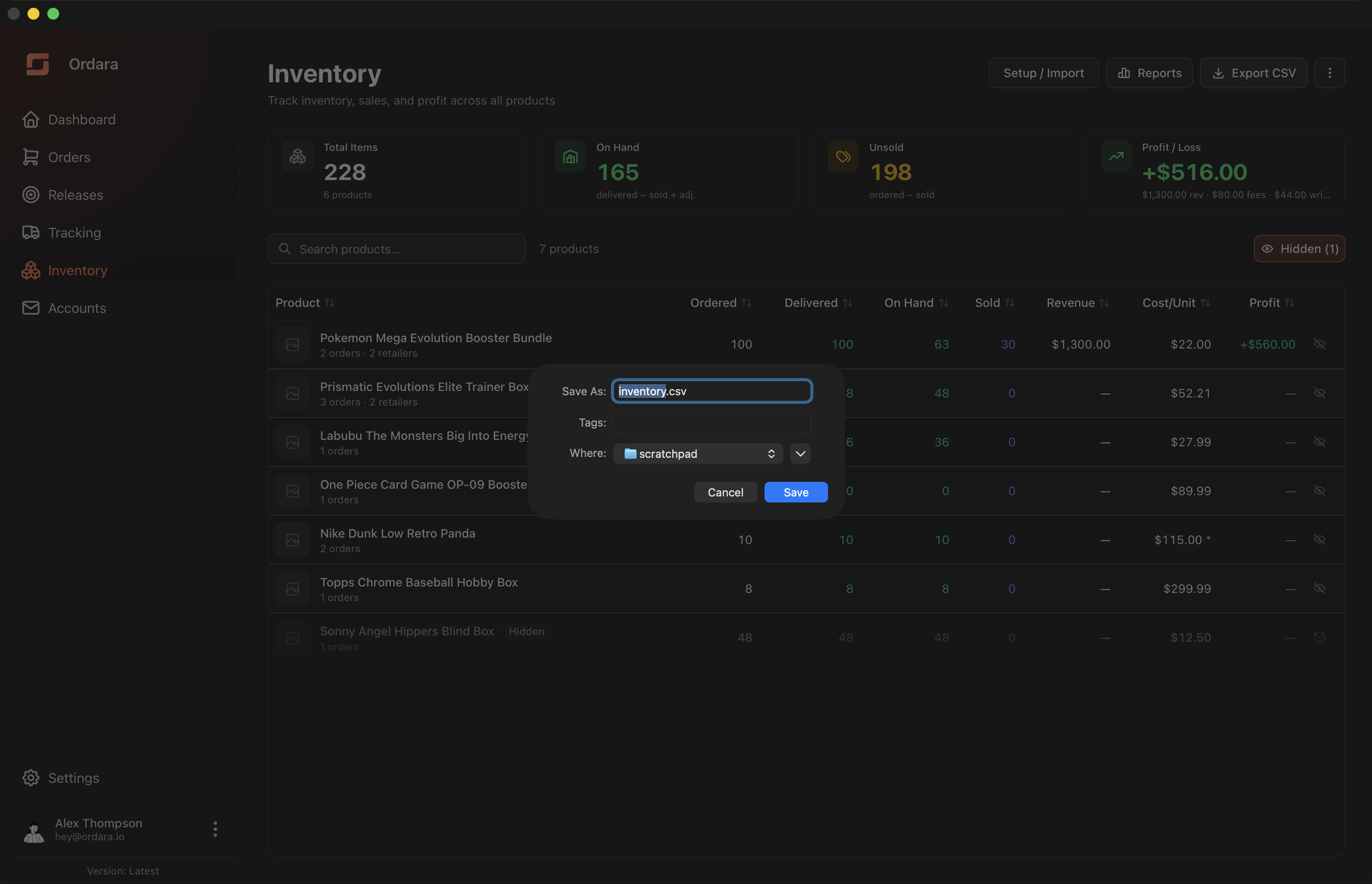
Export CSV in the Inventory header writes one row per active product with all of its derived figures, including a Cost Basis column flagging any row whose Cost/Unit should not be taken at face value. Hidden products are not written. See Exporting for the column list, and Profit & Loss Reports for the period-based export.