
Appearance
Managing Inventory
Day-to-day, inventory needs three things from you: record sales, correct groupings when Ordara guesses wrong, and adjust quantities when reality differs from your records.
The product list
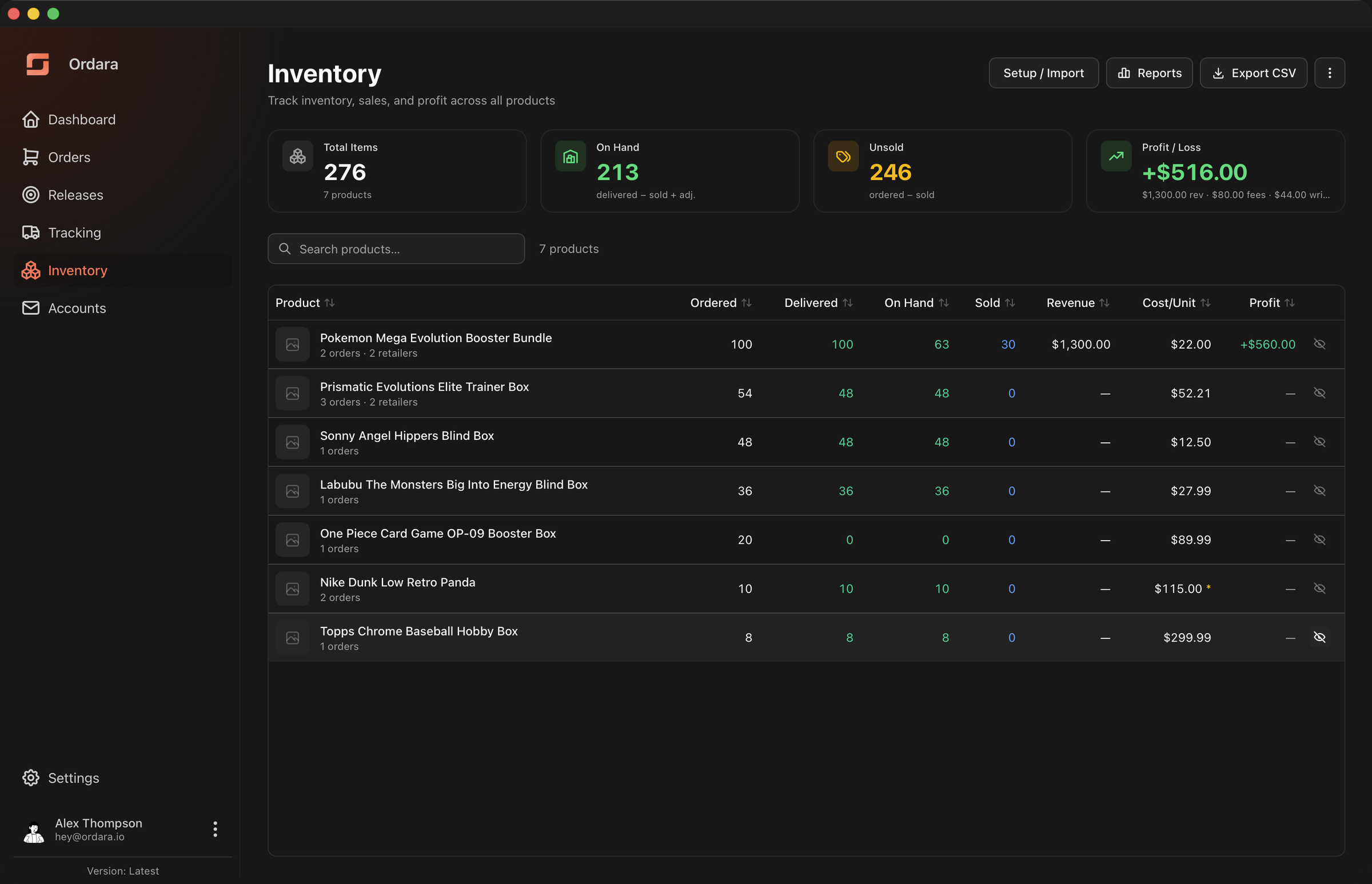
Four cards summarize your whole portfolio:
- Total Items: every unit you have ordered, less cancellations
- On Hand: what you physically hold
- Unsold: ordered but not yet sold, including units still in transit
- Profit / Loss: revenue minus cost of goods sold, fees and write-offs, across all time
The Profit / Loss card uses the same formula as net profit in Profit & Loss Reports, so it matches a statement covering your whole history, except that hidden products drop out of the card but stay in the report. It is not the same formula as the Profit column below, which leaves write-offs out.
The table shows one row per product: Product, Ordered, Delivered, On Hand, Sold, Revenue, Cost/Unit, and Profit. Click a column header to sort, search by product name, and click a row to open the product.
Some rows carry markers:
- Cost/Unit shows No cost basis, Missing purchase price, or an asterisk when the cost is incomplete. Hover for which.
- Profit shows an asterisk only when some sold units are not yet valued, so the total can still move. A gain shown in grey rather than green means no part of the cost is known and the figure is overstated.
A product can carry a Cost/Unit marker and a trustworthy Profit at once: if every sale was valued when recorded, losing the cost afterwards cannot move the total. What each marker means, and every other place it appears, is in Accuracy & Limitations.
The product page
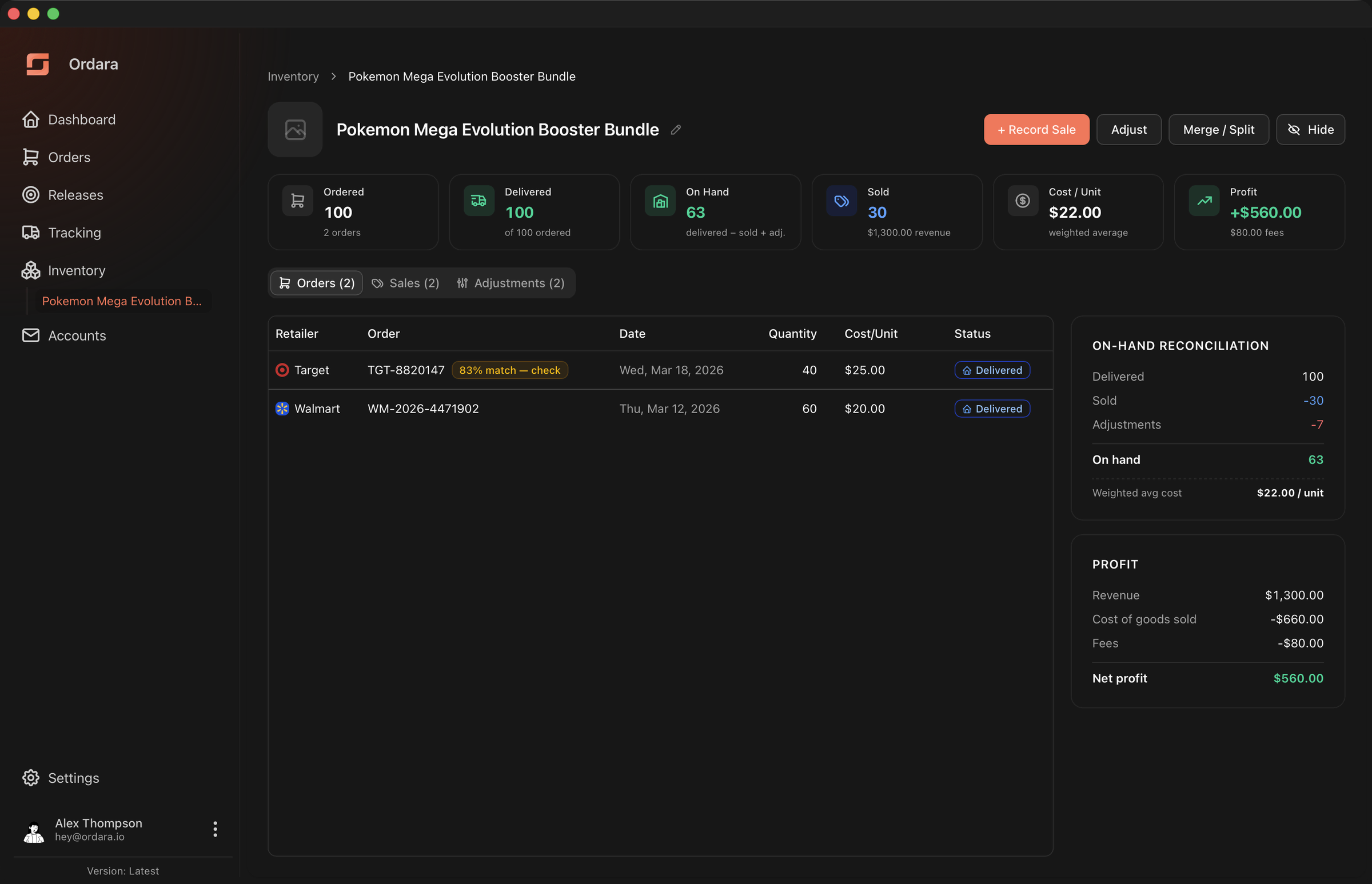
Six figures across the top: Ordered, Delivered, On Hand, Sold, Cost / Unit, and Profit. The pencil beside the product name edits the name and notes.
The right-hand rail shows the arithmetic behind those figures as two ledgers, on-hand reconciliation and profit. See How the Math Works.
Three tabs sit below:
- Orders: every order line grouped into this product. Right-click a line for View Order.
- Sales: everything you have recorded selling, with the cost each sale is valued at
- Adjustments: every quantity correction
Fixing a wrong cost
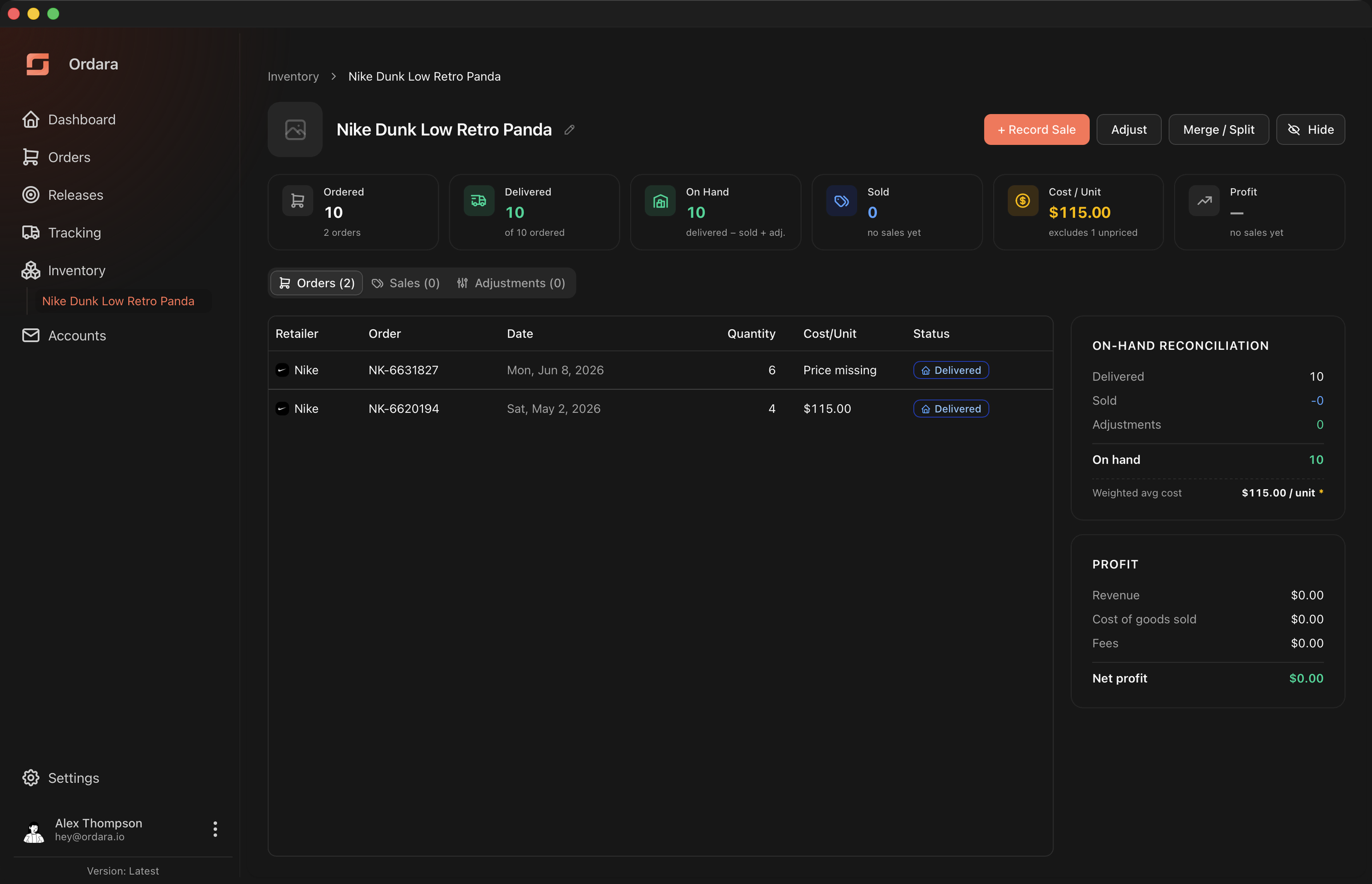
The Orders tab shows each line's retailer, order, date, quantity, cost per unit, and status. Click a cost to edit it: when a parsed price is wrong, when the line reads Price missing, or to fold your shipping cost into the unit cost. A missing price is the one worth chasing; until you supply it, the product's costs cannot freeze. Enter 0 if the item really was free.
Edited costs show in amber; the × beside one returns it to the parsed price. Your parsed order is not changed.
A line the retailer partly cancelled shows "N kept" with "M cancelled" beneath it; only the kept units count. A line with nothing left reads Cancelled. A line whose name matched this product below 90% carries a N% match — check badge, so a wrong grouping is easy to spot.
Recording a sale
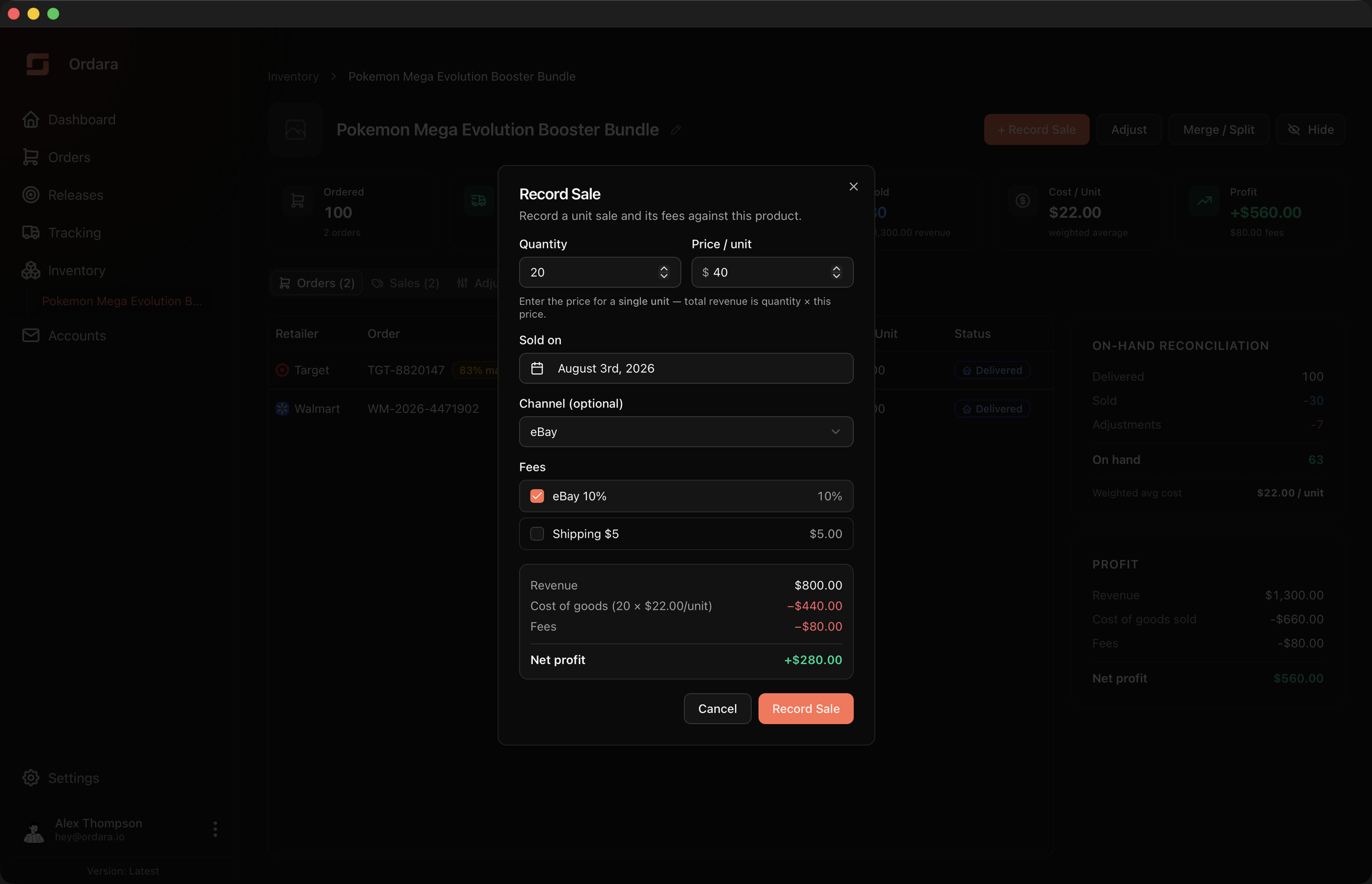
+ Record Sale on the product page opens the sale form:
- Quantity and Price / unit: what you sold, and for how much each
- Sold on: the sale date, which decides the Profit & Loss period it lands in. It cannot be in the future.
- Channel (optional): eBay, TCGplayer, Whatnot, Mercari, Facebook, Local, or None. It drives the revenue-by-channel breakdown in reports.
- Fees: tick your saved presets. There is no field for a one-off fee; create a preset for it first.
A preview shows revenue, cost of goods, fees, and net profit before you save. If the product's cost is not complete yet, it reads Provisional net profit and says why.
The price must be above $0.00, so a free giveaway cannot be recorded as a sale.
If fee presets do not load
Record Sale waits for your saved presets so a sale is never recorded with the marketplace cut silently left off. If they fail to load, use Retry fee presets; what you typed is kept. Continue without preset fees lets you record the sale anyway, with no fees on it.
Set up your fee presets once
Define marketplace commission and shipping costs under Settings → Inventory → Sale fee presets, as a percentage of the sale or a flat amount.
Two kinds tick themselves. A preset tied to a channel is ticked when you pick that channel (and unticked if you switch to another). A preset marked Default is ticked on every sale, but only if it is not tied to a channel. You can untick either on any sale.
Percentage fees are converted to a dollar amount when you save, so editing a preset later never changes sales you already recorded.
To correct a sale, delete it from the Sales tab and record it again. There is no separate refund; deleting removes its revenue and fees entirely.
Adjusting quantities
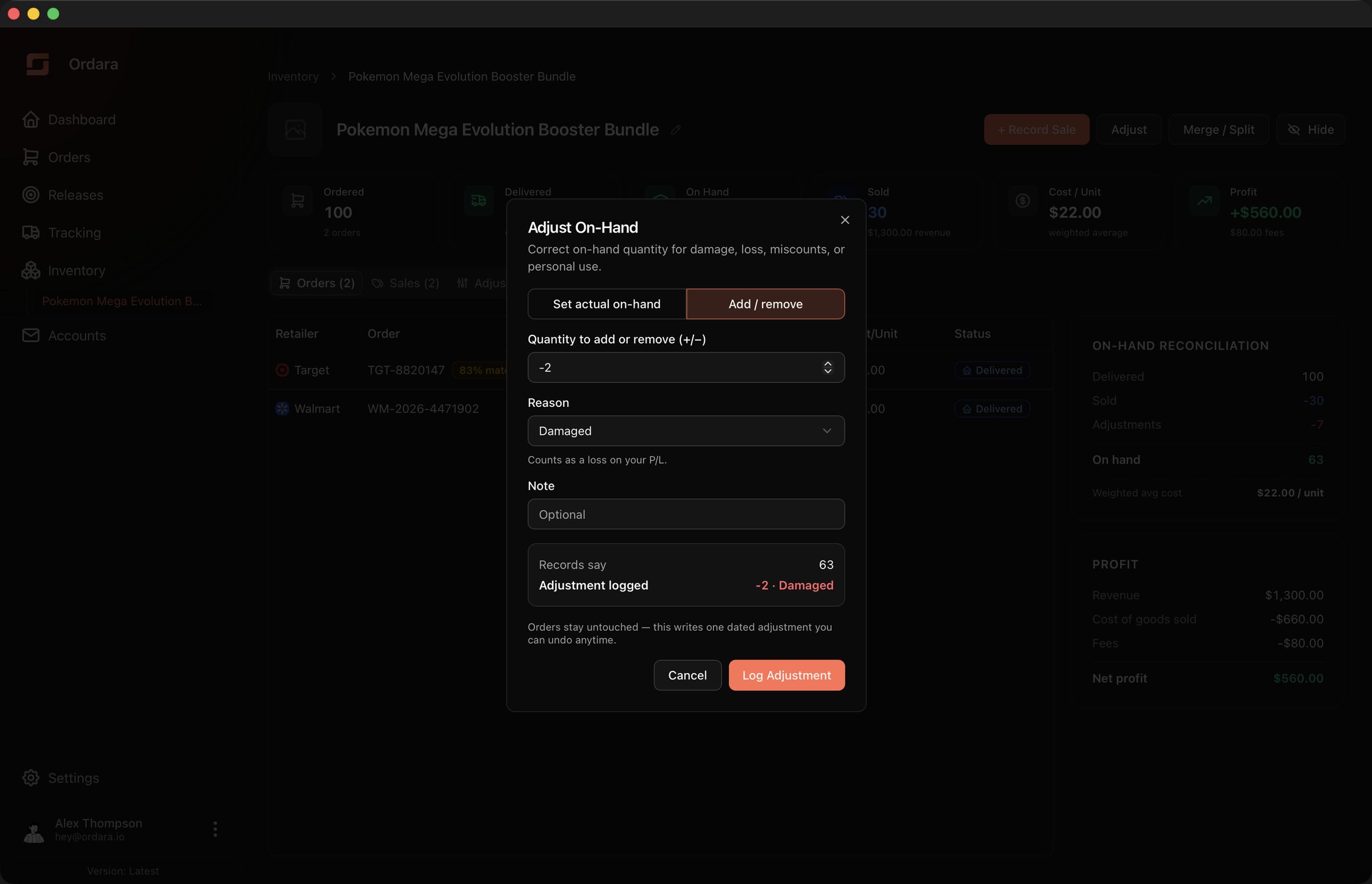
Adjust records the difference between your records and physical reality, in one of two ways:
- Set actual on-hand: enter what you counted, and Ordara works out the difference
- Add / remove: enter the change directly, positive or negative
Pick a reason: Damaged, Lost or stolen, Count correction (the default), Personal use, or Other. The line under the dropdown says whether that reason counts as a loss. Add a note if you want.
What the reason decides
Every adjustment moves on-hand by the amount you enter. The reason decides whether units you remove are charged as a loss:
| Reason | Removing units is charged as a loss? |
|---|---|
| Damaged | Yes |
| Lost or stolen | Yes |
| Other | Yes |
| Count correction | No: your records were wrong, nothing was lost |
| Personal use | No: you took the stock; that is a draw, not a business expense |
Adding units is never a loss.
The charge appears on the portfolio Profit / Loss card and in Profit & Loss Reports, not in the product's Profit, which only covers sales.
Example: remove 5 units as Damaged at $22 each. The product's Profit does not change, but the Profit / Loss card drops by $110 and your next statement shows a $110 write-off. Record the same 5 as Count correction or Personal use and nothing is charged.
Each adjustment is a dated entry on the Adjustments tab, dated the day you record it. Deleting it reverses it exactly.
Needs review
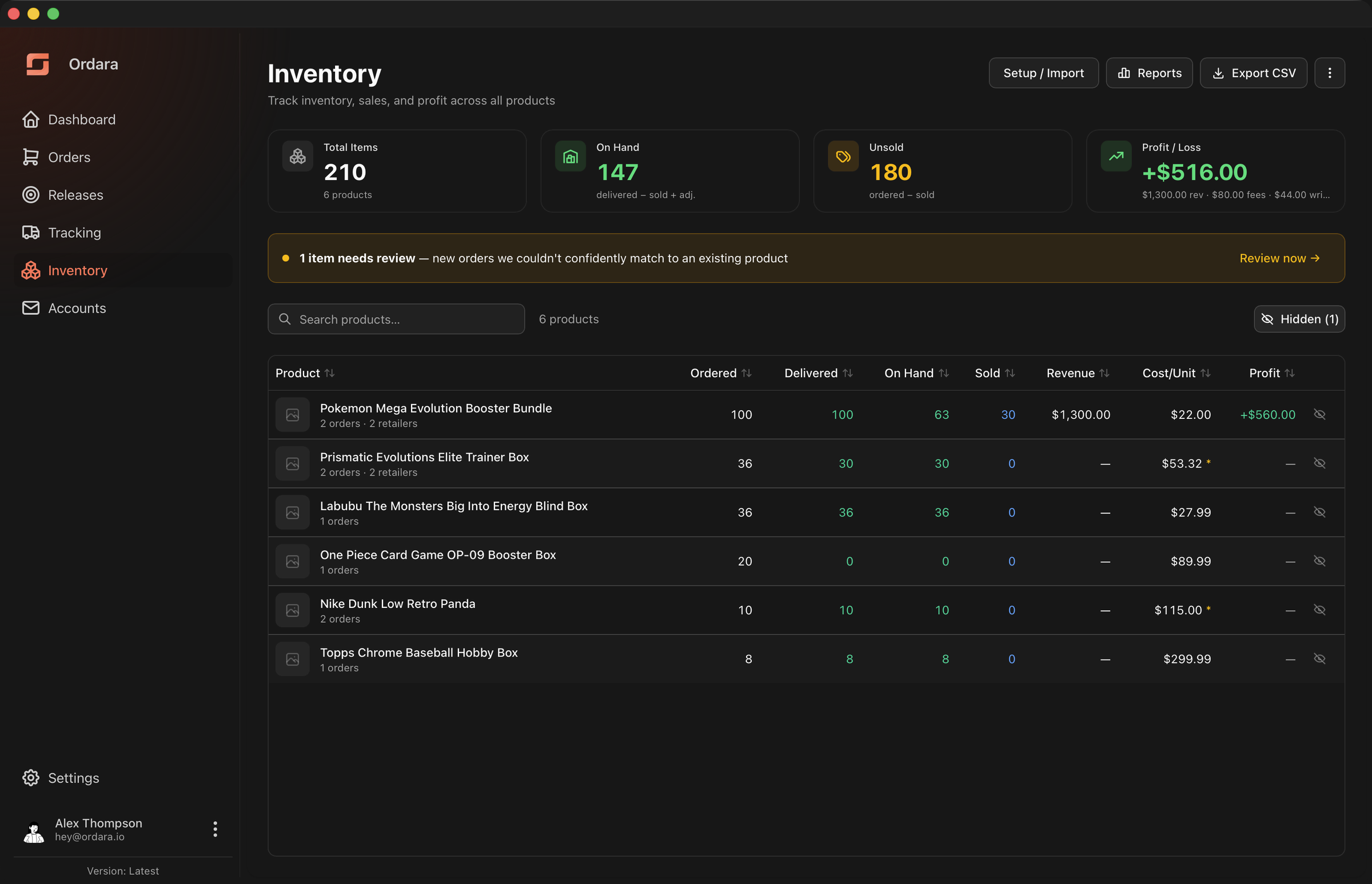
When a new order item looks like an existing product but not confidently enough to attach on its own, it waits here and a banner on the Inventory page says how many items need review. Review now → opens the queue.
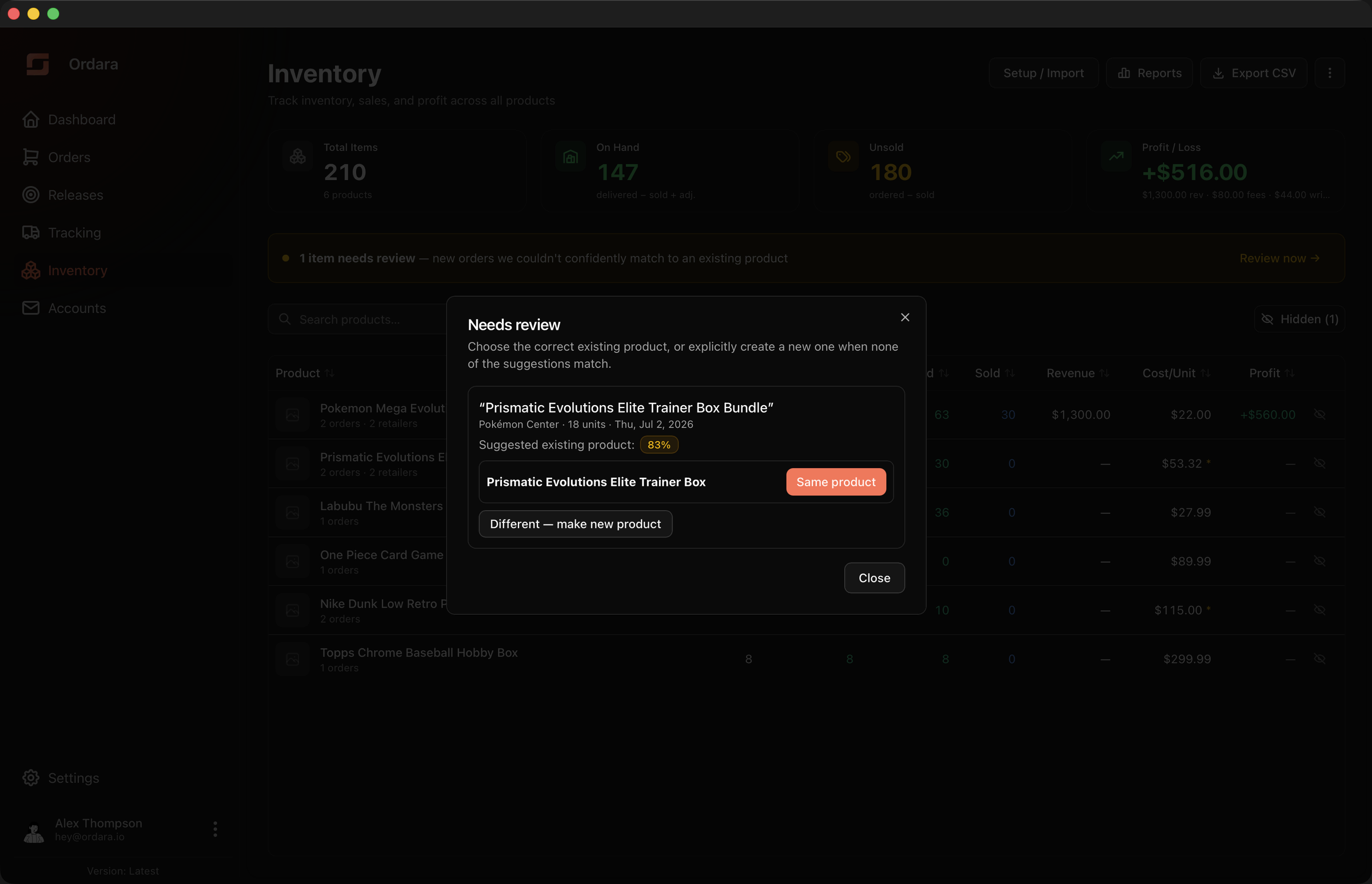
Each entry shows the incoming item, the product it probably belongs to, and a match percentage. A product you have hidden is badged Hidden product.
- One suggestion: choose Same product, or Different — make new product.
- Several products tied for the best match: all are listed. Choose Use this product on the right one, or make a new product.
If an entry changed since you opened the queue, Ordara refreshes the queue instead of acting on the old entry.
Pending items affect the product they are waiting on
Until you resolve an entry, its units are not counted and its purchase is left out of that product's weighted-average cost, while the product's unvalued sales are still valued from that average. See Lines awaiting review.
Merging and splitting
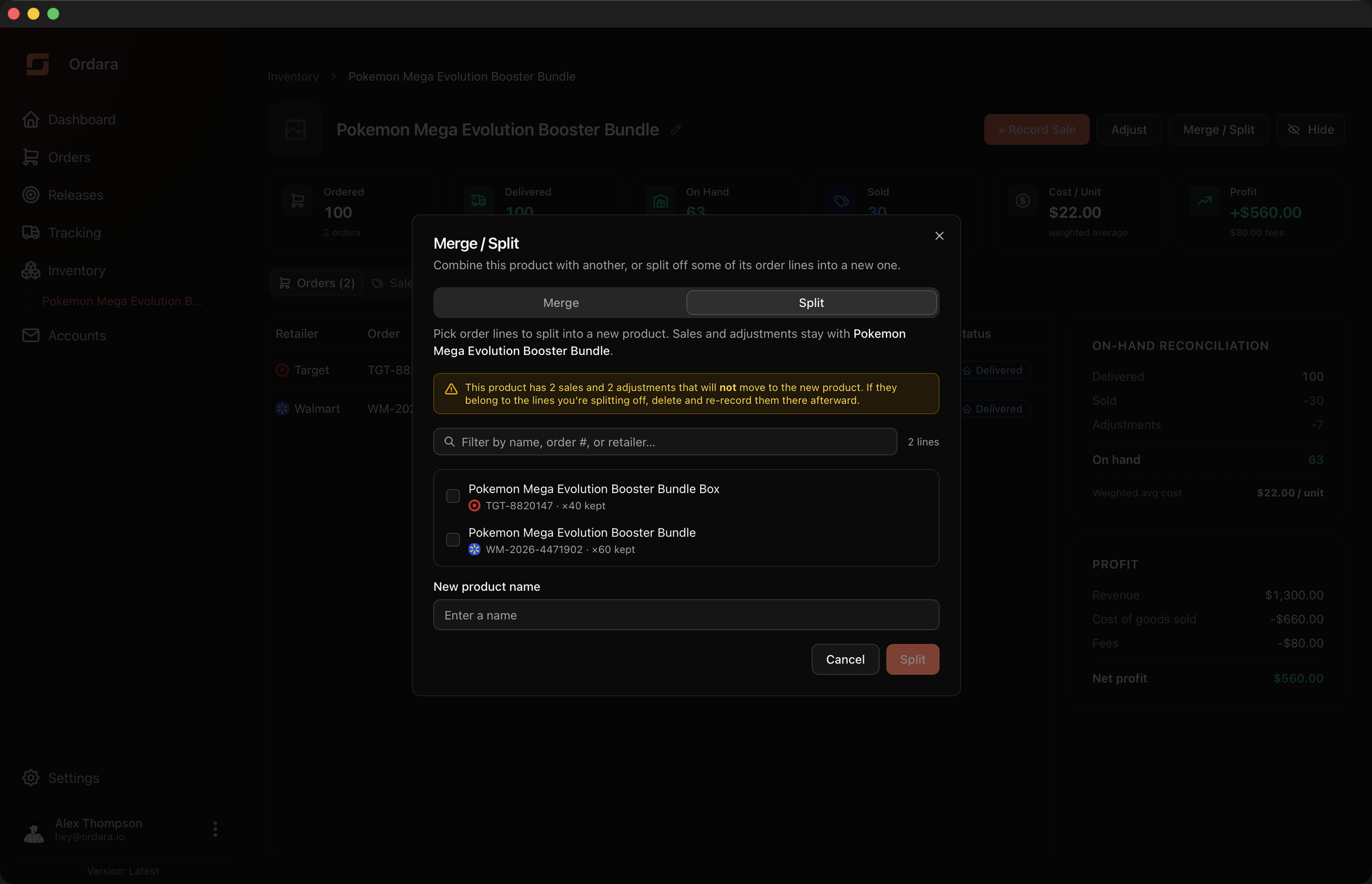
Merge / Split on the product page fixes grouping mistakes:
- Merge: combine this product into another. All of its orders, sales, and adjustments move across, and this product is removed.
- Split: select order lines and move them into a new product, which needs a name. At least one line must stay on the original; if every line belongs together, rename the product instead.
A split also takes the names of the lines you moved, so a later order under one of those names attaches to the new product rather than drifting back.
Neither operation deletes an order, sale, or adjustment; records only move, and figures recompute immediately.
Split does not take sales or adjustments with it
Only the order lines you select move. Every sale and adjustment stays on the original product, even if it covers units from the lines you split off. Delete any that belong with the new product and record them again there.
This is also why a merge cannot be undone once sales or adjustments are involved; the confirmation says so. Splitting the lines back out returns the order lines, but the merged sales and adjustments stay behind.
Hiding a product
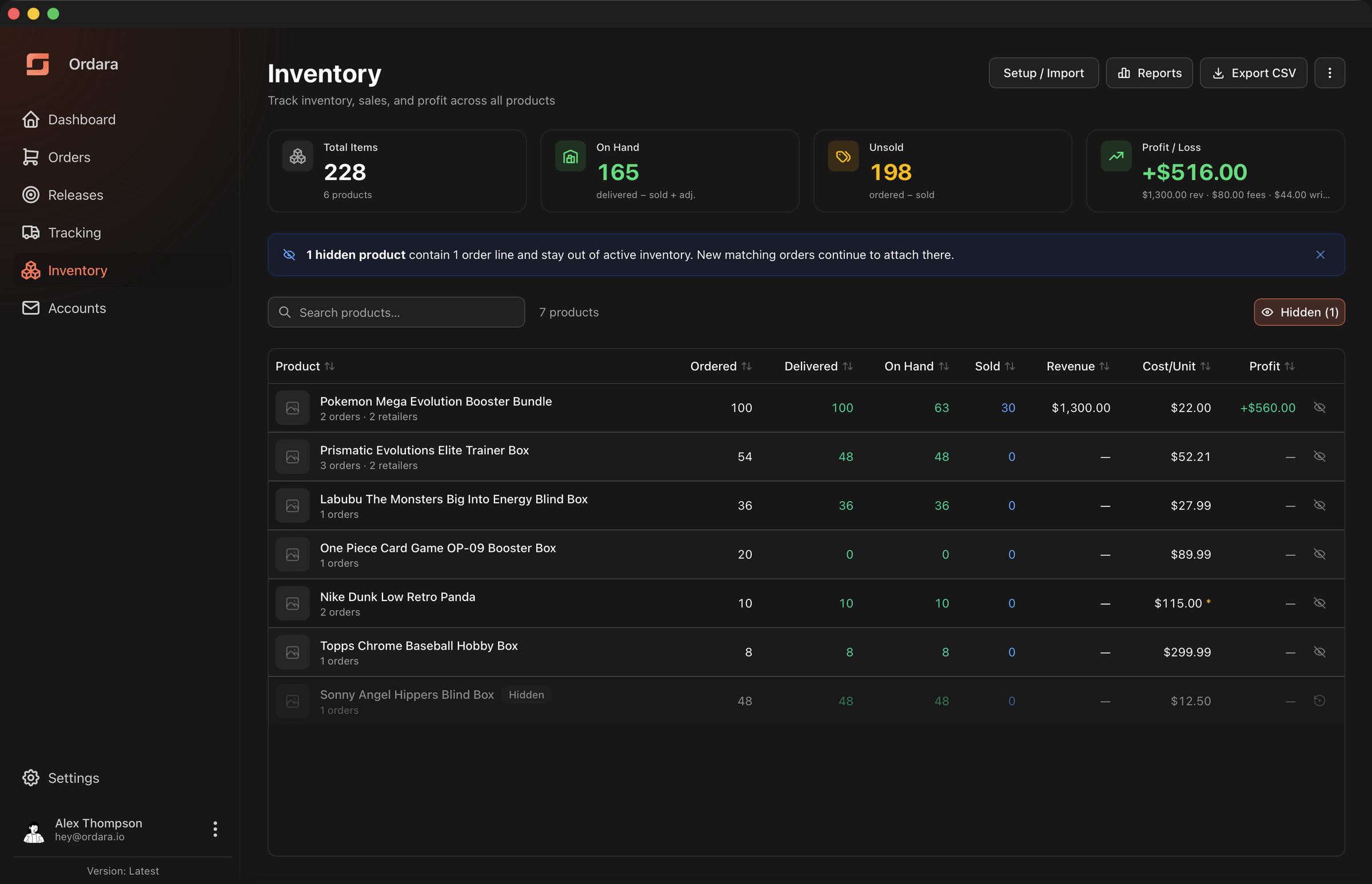
Some products do not belong in your working inventory: a personal purchase that got grouped in, a line you have finished selling. Hide on the product page, or the eye icon on its row, takes it out of the way without deleting anything. The confirmation lists what is kept: order lines, on-hand units, sales and adjustments.
| Hidden product | |
|---|---|
| Inventory list and stat cards | Excluded |
| Inventory CSV export | Excluded |
| Profit & Loss Reports | Still included; hiding does not rewrite history. Warnings name it with a (hidden) suffix |
| Matching of new orders | Still active; a new order that matches will attach to it |
Because matching keeps running, the Inventory page shows a notice while hidden products hold order lines. Once dismissed, it returns only when hidden products hold more lines than they did then: a new order attaching, or another product hidden.
To see hidden products, use the Hidden (N) toggle beside the search box. It appears once you have hidden something and remembers its setting. Hidden rows are dimmed with a Hidden badge. Restore on the product page, or the restore icon on its row, puts the product back as it was.
Hiding is not deleting
There is no delete for a single product. Hiding is the closest thing. To start over completely, use Reset inventory; see Overview & Setup.
Exporting
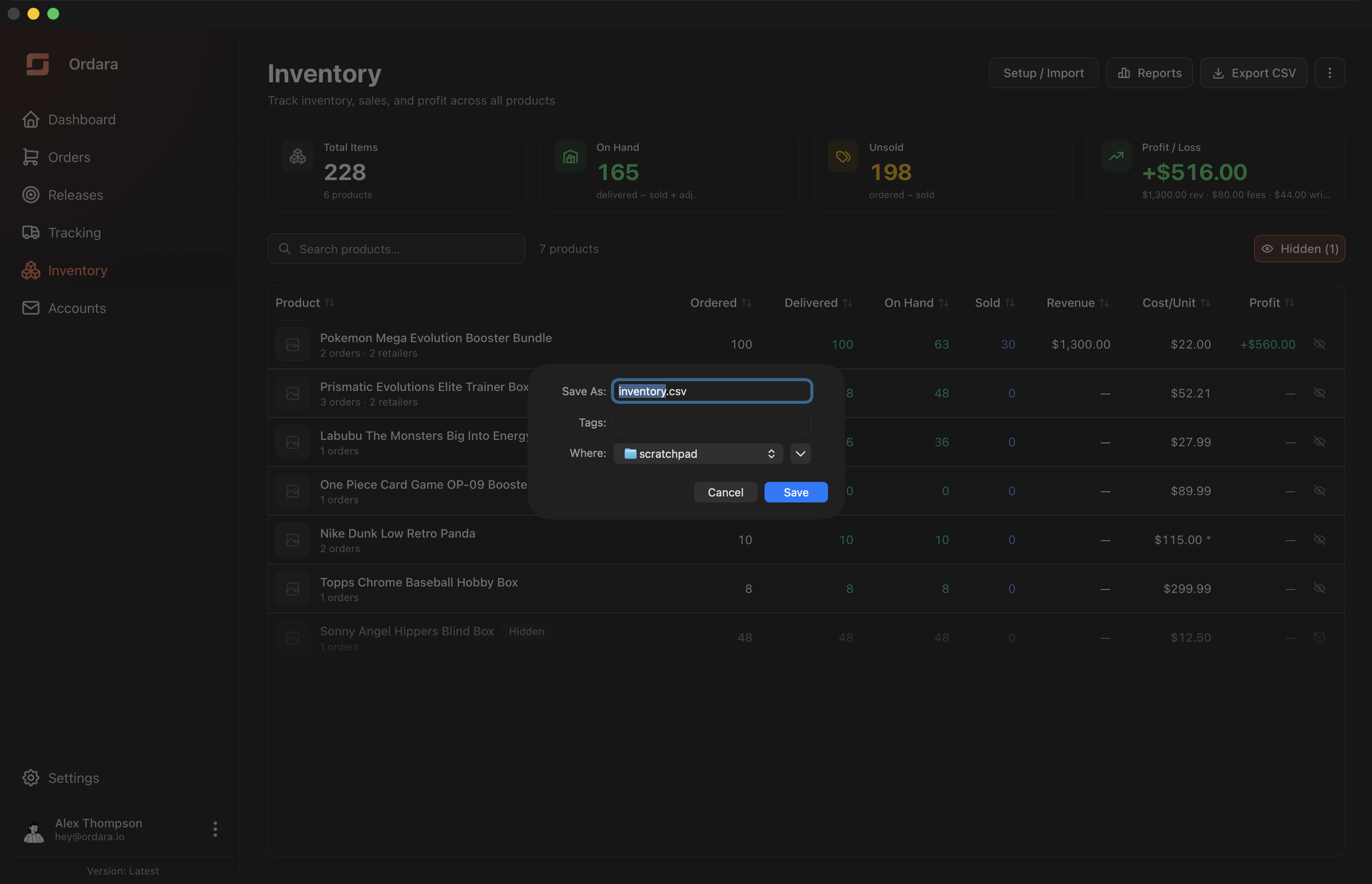
Export CSV in the Inventory header writes one row per active product with its figures, plus a Cost Basis column flagging any Cost/Unit not to take at face value. Hidden products are left out. See Exporting for the columns, and Profit & Loss Reports for the period export.