
Appearance
Inventory
Inventory turns the orders Ordara already parsed into a stock and profit view: what you bought, what arrived, what you still hold, what you sold it for, and what you made.
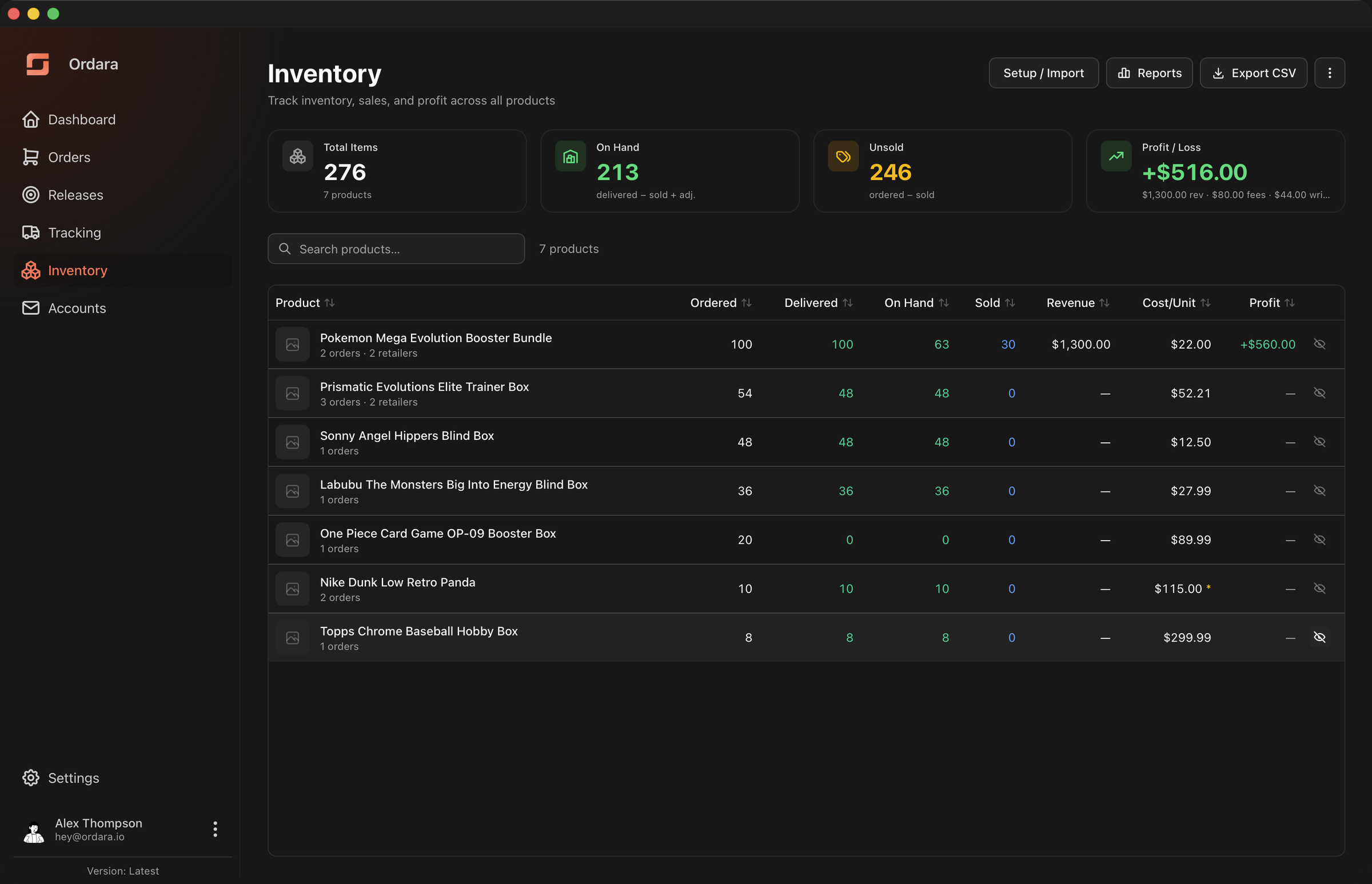
There is no product catalog to build and no opening stock to key in. Ordara groups the order lines it parsed from your email into products, and every count and dollar figure comes from those groups plus what you record:
- Products group order lines that are the same physical thing, even when retailers name them differently ("Mega Evolution Booster Bundle" and "Pokemon Mega Evolution Bundle").
- Sales are entries you record when you sell units. Ordara cannot detect these on its own.
- Adjustments record what your paperwork missed: damage, loss, personal use, a miscount.
Counts are never stored as editable numbers; they are recomputed from those inputs every time. See How the Math Works, and Profit & Loss Reports for profit over a chosen period.
Setting up
The first time you open Inventory, you choose how to start. Until you do, Ordara adds nothing.
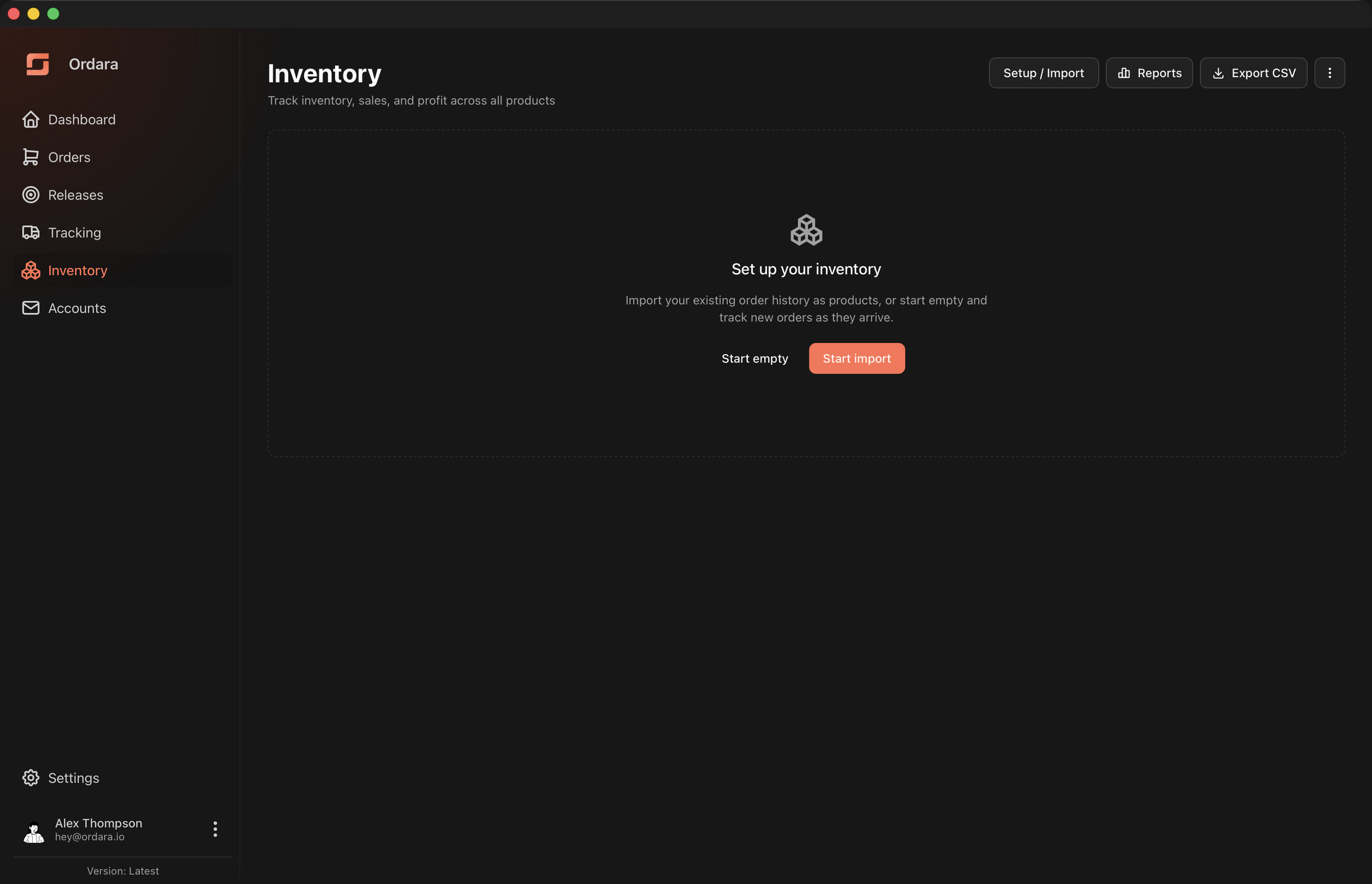
- Start import: review your existing order history and pick which products to bring in.
- Start empty: skip your history and let new orders build your inventory from here on.
Either way, new orders are added automatically from then on. The choice is not final: Setup / Import in the Inventory header still offers your full order history later. See Re-running setup.
Which should you pick?
Choose Start import if you already hold stock you bought through a tracked retailer. Choose Start empty if you are starting fresh, or if your older orders were personal purchases you do not want mixed into your numbers.
The setup page
Start import opens this page, with your order history grouped into proposed products.
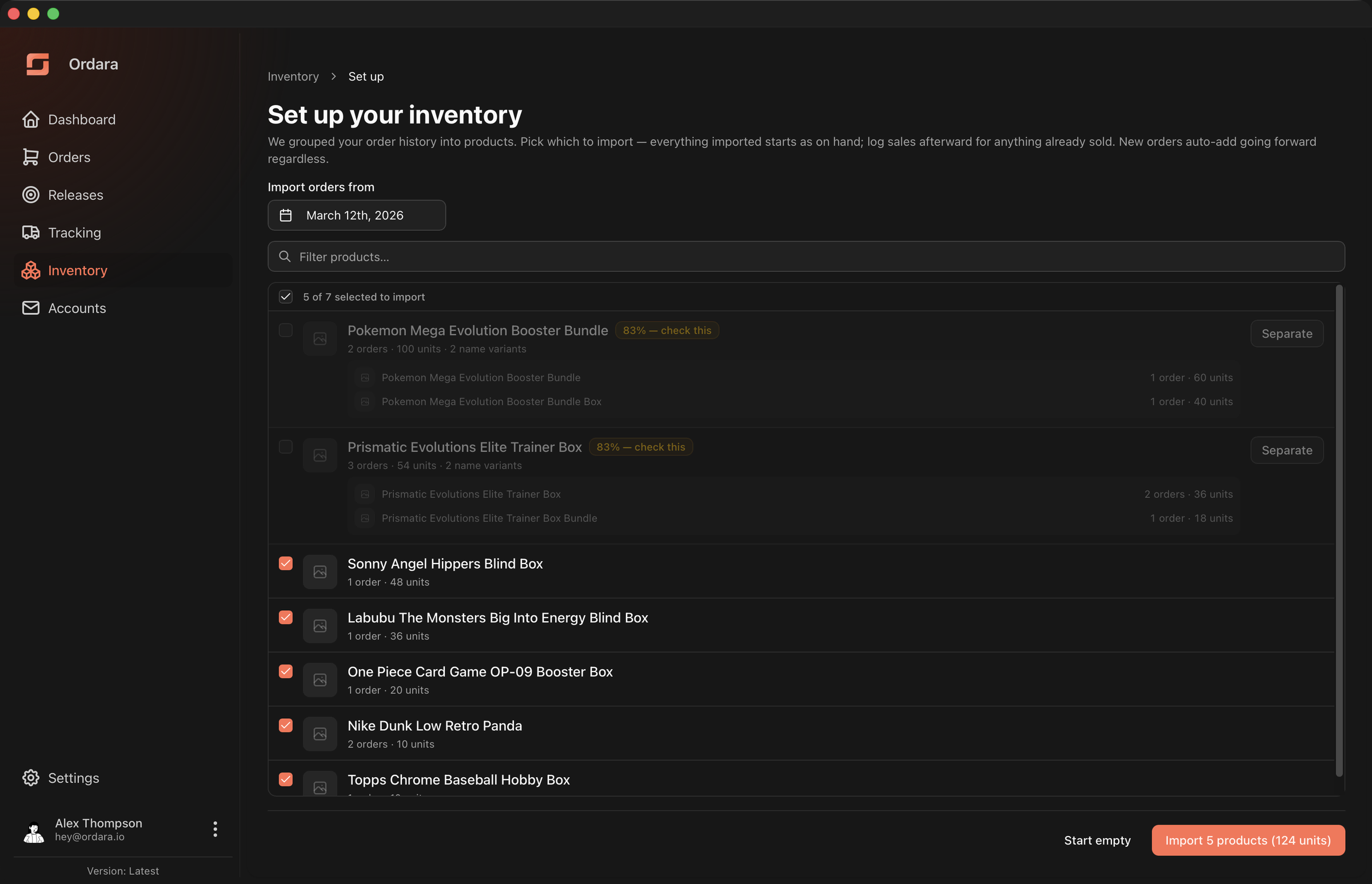
Import orders from sets how far back to look. It starts at your oldest order; orders before the date you pick are ignored. A date a few months back is usually a better starting point than everything you have ever bought, if you no longer hold the older stock.
Each row is one proposed product: its thumbnail, the name Ordara chose, and how many orders and units it covers. Click a row to include or exclude it. The header checkbox toggles every visible row, the filter box narrows the list, and the counter reads "N of M selected to import". The import button shows how many products and units you are about to bring in.
A row that groups names that are not an exact match carries a N% — check this badge: its weakest name matched below 90%. Badged rows list their name variants beneath them. Any row that groups more than one name has a Separate button, which splits it into one product per name.
Badged rows start unchecked
Clean groupings are checked for you; badged rows are not, so a doubtful grouping is never imported by default. Blending two SKUs into one cost basis is hard to undo. Tick the badged rows you agree with, or use the header checkbox to take everything.
If new orders arrive while you are reviewing, Ordara will not import against the older list. It says "Orders changed while you were reviewing. Preview refreshed."; check your selection and import again.
Everything you import starts as on hand
Imported products begin with their full delivered quantity on hand. If you have already sold some of it, record those sales afterward from the product page. See Managing Inventory.
After setup
New orders join your inventory automatically as they are parsed:
- A confident name match attaches to the existing product.
- A plausible but uncertain match waits in Needs review, shown as a banner on the Inventory page.
- Anything unlike your existing products becomes a new product.
The matching rules are in Accuracy & Limitations.
Re-running setup
Setup / Import in the Inventory header reopens the setup page at any time. Order lines already in inventory are never offered twice, so nothing is duplicated. Use it to pull in an older date range you skipped, or to import your history after choosing Start empty.
Ordara remembers the name of each order line you passed over. If a parser fix later changes that name, Ordara reconsiders the line automatically instead of leaving it skipped.
Starting over
The ⋮ menu in the Inventory header has Reset inventory. It deletes every product, sale, adjustment, and cost override and returns you to the setup choice above. Your fee presets are kept.
Reset cannot be undone
Your sales and adjustments exist only in inventory and are not recoverable. Your parsed orders are never touched, so a reset costs you your inventory work, not your order history. Export a CSV first if there is anything worth keeping.