
Appearance
Email Accounts
Ordara connects to your email over IMAP to find and parse order confirmations. You can add as many accounts as you need; orders from all of them appear together on the Orders page.
INFO
Your email passwords are stored encrypted on your computer. Ordara only uses them to sign in to your mail server.
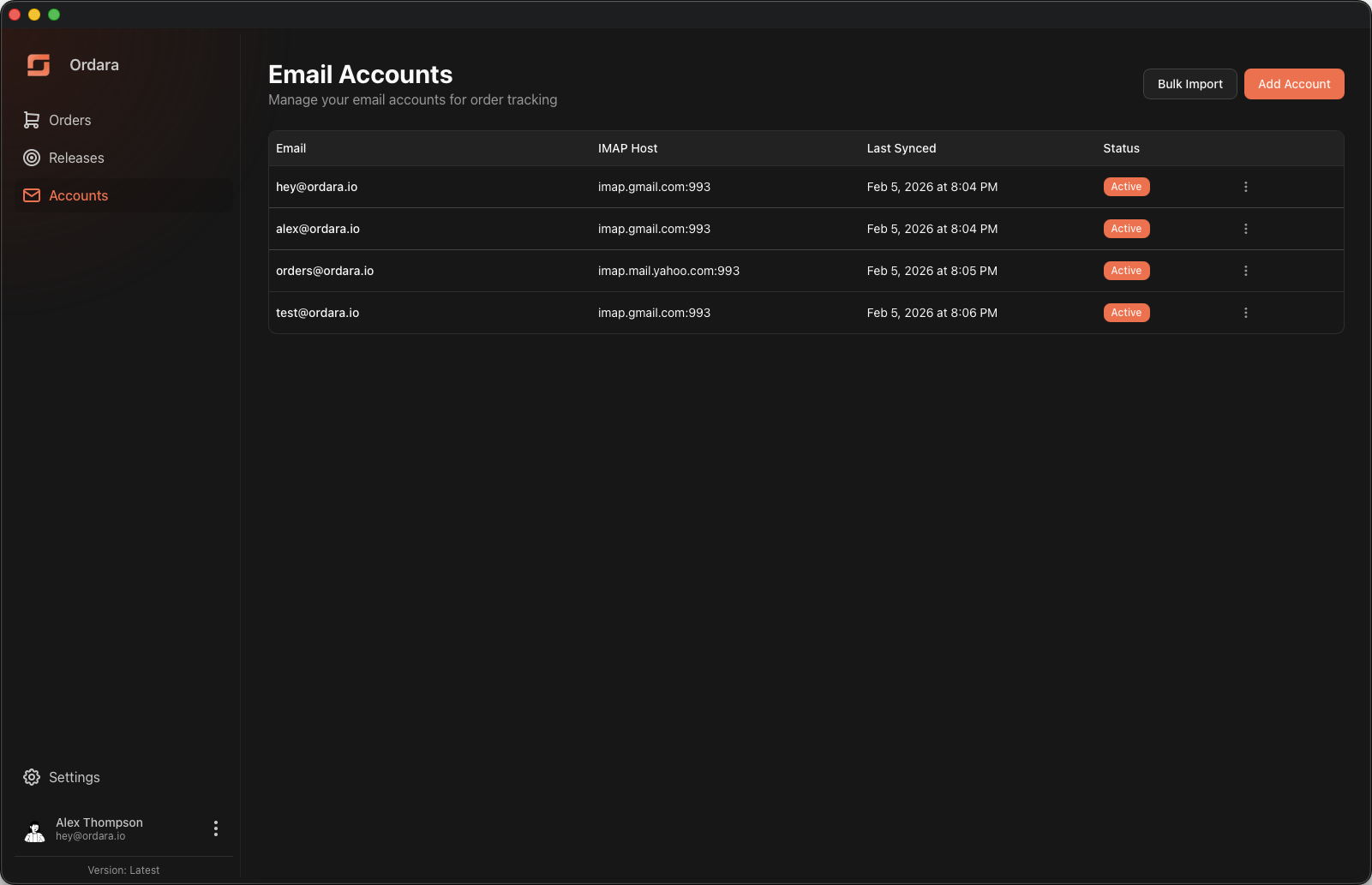
Adding an Email Account
- Click Accounts in the sidebar, then click Add Account.
- Choose Direct and click Next. To read mail through AYCD instead, see AYCD Integration.
- Enter your Email Address and Password. For most providers the password must be an app password, not your normal login password.
- Server settings for Gmail, iCloud (
icloud.com,me.com,mac.com), and Yahoo (yahoo.com) are filled in automatically. - For any other domain, an IMAP Server field appears. Enter your provider's IMAP host and port (usually
993). Ordara always connects with SSL/TLS.
- Server settings for Gmail, iCloud (
- Click Next, check the summary, and click Add account.
Ordara tests the connection before saving the account. If the test fails, the wizard shows Couldn't connect with the error from your mail server; see Email Connection Issues. Once the account is added, Ordara starts the first sync from your Scan Back Date.
Outlook / Hotmail
Outlook, Hotmail, Live, and MSN accounts can't be connected directly because Microsoft no longer allows password sign-in for them. Connect them through AYCD, or forward their order emails to a supported account such as Gmail.
Adding Several Accounts at Once
In step 3, select the Multiple accounts tab and paste one account per line in email:app-password format. Ordara detects the server for each address. For domains it doesn't recognize, it uses imap.<your domain> on port 993; if that's wrong for your provider, add those accounts one at a time with the Single account tab.
The review step adds the accounts one by one and shows which were added, which failed, and which were skipped because they conflict with an account you already have.
App Passwords
Gmail, Yahoo, and iCloud require an app password for apps like Ordara. Your regular login password will be rejected.
Gmail
You need 2-Step Verification turned on before Google offers app passwords.
- Go to myaccount.google.com and select Security.
- Under How you sign in to Google, make sure 2-Step Verification is on.
- Visit myaccount.google.com/apppasswords (or search for App passwords on the Security page).
- Enter a name such as "Ordara" and click Create.
- Copy the 16-character password into Ordara's Password field.
WARNING
Google shows the app password only once. If you lose it, generate a new one.
Yahoo Mail
- Go to login.yahoo.com/account/security.
- Click Generate app password.
- Enter "Ordara" as the app name and generate the password.
- Copy the password into Ordara.
iCloud
- Sign in at account.apple.com and open Sign-In and Security.
- Select App-Specific Passwords and create one named "Ordara".
- Copy the password into Ordara.
Managing an Account
Open the three-dot menu on an account's row:
| Action | What it does |
|---|---|
| Sync Now | Checks the account for new mail right away. Ordara also syncs every active account when it starts and about once an hour while it's running. Sync All at the top of the page syncs every account. |
| Edit | Changes the password or server settings. Leave Password blank to keep the current one. Ordara tests the new settings before saving and then syncs the account. Direct vs. AYCD can't be changed here; delete and re-add the account to switch. |
| Deactivate / Reactivate | Stops or resumes scanning. A deactivated account shows Inactive and keeps its orders and Inventory history. |
| Delete | Deletes the account and its orders. See Removing an Account. |
Sync Errors
When an account's most recent sync fails, its status shows Error, and the Accounts item in the sidebar shows how many active accounts are failing. Hover the info icon next to Error to see when the account started failing, how many syncs in a row have failed, and what to do next:
- Too many connections: close other mail apps or devices that are signed in to this account.
- Credentials rejected: update the account password or app password with Edit.
- Interrupted logins: check your provider's status page and this account's IMAP settings.
- Provider server problems: no action is needed; your email provider reported a temporary server error and Ordara keeps retrying.
- Server unreachable: check your internet connection and this account's IMAP server settings.
- Slow responses: no action is needed; Ordara keeps retrying.
- AYCD not responding: for AYCD accounts, a dropped, refused, or stalled connection comes from AYCD rather than your email provider. For a local AYCD account, make sure the AYCD companion app is open and running; for a remote AYCD account, check AYCD's status and that the inbox is still active in AYCD.
When an account keeps failing with too many connections, slow responses, interrupted logins, or provider server problems, Ordara waits longer between its scheduled retries (up to about four hours) so the provider can recover. An unreachable server is still retried on every scheduled sync. Sync Now always tries right away, and deactivating and reactivating an account clears the wait.
The error and the sidebar count clear after the next successful sync.
To hear about failing accounts without opening Ordara, go to Settings → Notifications, make sure Enable notifications is on, pick a desktop or Discord channel under Where to send, and turn on Notify me when an email account keeps failing to sync under Email account alerts. Ordara alerts you right away when your provider rejects an account's password, and after other failures have lasted at least two hours across at least three syncs. You get one alert per failure, plus one more when the account syncs again. Alerts are sent between 7 AM and 9 PM while the desktop app is running, and they don't wait for the morning digest.
Email Data Health
The Email Health column shows No issues when Ordara has no known data problems for an account. Data incomplete means an email could not be processed, a cancellation could not be matched, or reliable order information is missing.
Click the status to open Email data health and review the affected data. If an email was not processed, select Retry failed emails to try it again, including emails that reached the automatic retry limit. Status unavailable means Ordara could not check email data health; select Try again to refresh it.
A Confirmation missing order is not an account error. See Confirmation Missing Does Not Clear if it doesn't resolve.
Removing an Account
- Click Accounts in the sidebar.
- Open the three-dot menu on the account and choose Delete.
- Click Delete Account to confirm.
You can't delete an account while it is syncing.
WARNING
Deleting an account permanently deletes every order, shipment, and release link parsed from it. If Inventory uses any of those orders, Ordara blocks the deletion: choose Deactivate instead to stop scanning and keep your history, or reset Inventory first.