
Appearance
Tracking
The Tracking page lists every shipment (package) Ordara has found in your shipping emails and shows the carrier's latest status and scans for each one. Open Tracking in the desktop app.
Orders and Tracking
An order is one purchase from a retailer. A shipment is one package with its own tracking number. An order can arrive in several shipments, and each one gets its own row on Tracking. When a retailer reuses a tracking number across orders, each order gets its own row with that number, and the rows update together.
| Orders | Tracking | |
|---|---|---|
| One row per | Order | Shipment |
| Status comes from | The retailer's emails, then the shipped and delivered dates of the order's shipments | The carrier's latest scan, once Ordara has checked the carrier |
| Example statuses | Confirmed, Shipped (1/2), Delivered, Cancelled; Preparing, Ready to collect, and Collected for pickups | Preparing, Label Created, In Transit, Out for Delivery, Delivered, Exception, Returned to Sender |
| Search covers | Order ID, retailer, emails, address, product names, tracking numbers | Order ID, retailer, carrier, tracking numbers, shipping service, address (tolerates spelling differences) |
| Only on this page | Date and cancellation filters, Mark as delivered / Mark Collected, Go to Release, pickup orders | Refresh and Refresh All, the carrier event timeline, the Exception filter |
Both pages let you sort by several columns, select rows across pages, archive, and export to CSV.
How the two connect:
- Ordara creates a shipment from the retailer's shipping email, before it has checked the carrier. Until then the shipment shows Preparing or Shipped.
- When a carrier check finds a shipped or delivered date, Ordara updates the order. The order becomes Delivered once every one of its shipments is delivered, and shows Delivered (1/2) while only some are. Shipped works the same way.
- An order's status never moves backwards, and a Cancelled order stays cancelled whatever its shipments do.
- Delivery notifications follow shipments, not order status. See Delivery Notifications.
When the two can disagree:
- A delivery email arrives before the carrier's final scan. The order shows Delivered while Tracking still shows In Transit or Out for Delivery. Ordara keeps checking the shipment until the carrier confirms delivery.
- You mark an order delivered. Only the order changes. Its shipments keep their carrier status and show an Order manually marked delivered badge.
- The package is returned. A Returned to Sender shipment never counts as delivered, so the order does not become Delivered from it.
- The order is cancelled. Tracking still shows any shipments with their carrier status.
Pickup orders have no shipments and appear only on Orders. Archiving an order hides its shipments from Tracking. Archiving a shipment does not change its order.
Finding a Shipment
The cards at the top count Total Shipments, Pending, Shipped, Out for Delivery, and Delivered, leaving out archived shipments.
Use the search box to find a shipment by order ID, retailer, carrier, tracking number (including a USPS handoff number), shipping service, or address. Address search ignores capitalization and common formatting differences. For example, 2502 Magazine St can match an address that includes unit punctuation, extra letters, or the full word Street.
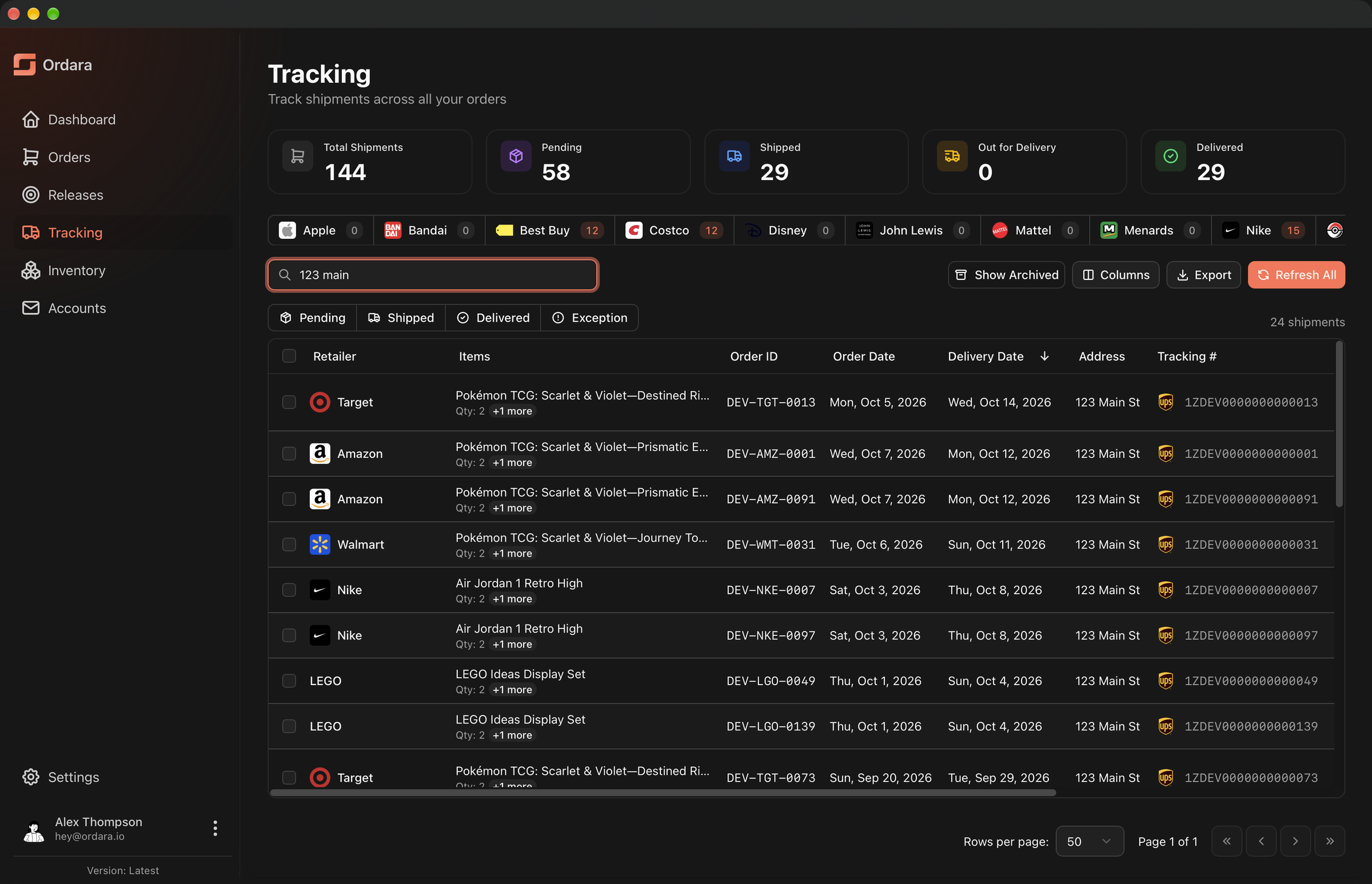
To narrow the list:
- Click a retailer in the retailer row to show one store.
- Click a status button:
- Pending: Preparing or Label Created.
- Shipped: Shipped, In Transit, or Out for Delivery.
- Delivered.
- Exception: Exception or Returned to Sender.
- Click Show Archived to include archived shipments.
- Click Columns to show or hide table columns.
Click a column header to sort by it, and click again to reverse the order. Hold Shift and click more headers to add secondary sorts. Shipments without a delivery date or address stay at the bottom of those sorts in both directions.
Refreshing Tracking
Ordara checks shipments in the background while the desktop app is open:
- Checks run between 7 AM and 9 PM, whether or not notifications are turned on.
- Shipments that are out for delivery, expected today or tomorrow, or in transit with no future delivery estimate are checked about once an hour. Other shipments are checked about twice a day.
- Ordara stops checking a shipment once it is delivered or returned to sender, or when you archive it or its order.
- If a lookup keeps failing, background checks try that shipment less often, down to once a day.
To check right away:
- choose Refresh from a shipment's three-dot menu or from its details;
- right-click selected shipments and choose Refresh Selected (this also works for archived or delivered shipments); or
- click Refresh All to check every shipment Ordara is still following (the same shipments as the background checks).
A manual refresh tries a failing shipment again immediately. After a successful check, a shipment can't be refreshed again for 3 hours, or 30 minutes while it is out for delivery. If a refresh is skipped or fails, Ordara shows a summary and keeps the last tracking information.
You can also refresh from the Web Dashboard while the desktop app is online.
Shipment Details
Open a shipment to see its order ID, tracking number, shipping service, carrier, estimated or actual delivery date, address, the items in the package, and a timeline of carrier events. The buttons at the bottom let you Refresh, Archive or Unarchive, and Open Order.
Ordara shows the shipping service, such as UPS Ground Saver or FedEx Home Delivery, under the tracking number. For some UPS and FedEx shipments it can take a few refreshes to appear.
The latest scan can lag behind where the package really is. If a status looks stuck, refresh it and compare it with the carrier's own tracking page.
UPS packages handed to USPS
UPS Ground Saver packages are usually handed to USPS for final delivery. When that happens, the shipment shows Transferred to USPS next to its status. The handoff is not a delivery.
After the handoff, Ordara checks UPS for the USPS tracking number. Until it is found, the row shows USPS number not yet found, and Refresh All reads Checking UPS while the check runs. Once found, the USPS number appears as Local tracking in the details, and later checks use it. If the check can't finish, Ordara shows a warning. Refresh the shipment to try again.
Returned to Sender
If the carrier reports that the package is going back to the sender, for example with a USPS Addressee Unknown scan, the shipment shows Returned to Sender and appears under Exception. Ordara stops checking it, and it is left out of the shipment counts in the morning digest.
Delivery Notifications
Choose which shipment updates to receive (Shipped, Out for delivery, Delivered) and where to send them in Settings → Notifications. Notifications come from shipments, either from carrier checks or from a retailer's delivery email. If a shipment moves through several steps between checks, you get only the latest one. Ordara does not send updates that happened more than 24 hours earlier.
A delivery notification can arrive after the carrier's delivery time because of:
- Check timing. A shipment due today is checked about once an hour, and the carrier can take a while to publish the delivery scan.
- Quiet hours. Ordara checks tracking and sends notifications only from 7 AM to 9 PM. Updates found after 9 PM arrive the next morning.
- Morning digest. With Morning digest on, updates wait for the digest. The Digest time must be before noon.
Each notification Ordara sends adds a notification: delivery latency line to the daily ordara-YYYY-MM-DD.log file in Ordara's data folder. It shows how much of the delay came from the carrier, quiet hours or the digest, and sending. It does not include tracking numbers, addresses, or item names.
Exporting Shipments
Click Export, choose the columns, and click Export CSV. Without a selection, the export includes every shipment that matches your search and filters, across all pages. With a selection, only the selected shipments are exported. See Exporting Tracking for the columns.
Archiving Shipments
Archive delivered or inactive shipments to remove them from the default list without deleting them. Choose Archive from a shipment's three-dot menu or its details, or right-click several selected shipments. Archiving 10 or more shipments at once asks you to confirm first.
After archiving, the notification has an Undo button. It restores only the shipments that action archived, so shipments you had already archived stay archived. If the notification is gone, click Show Archived and then Undo last archive, which restores the most recent archive batch, even after restarting Ordara.
Click Show Archived to find archived shipments, then choose Unarchive to return them to the list.
INFO
Background checks and delivery notifications need the desktop app running. The Web Dashboard shows the same tracking information.