
Appearance
Exporting
Ordara exports orders, shipments, inventory, and profit and loss statements to CSV files you can open in a spreadsheet or accounting tool.
WARNING
Ordara can make mistakes. Verify exported data before you use it for any official or legal purpose. We do not guarantee the accuracy of exported data.
Exporting Orders
- Go to the Orders page.
- Optionally, filter the list (retailer, date, status, or cancellation) or select the orders you want.
- Click Export.
- Choose the columns, then click Export CSV.
- Choose where to save the file. Leave Open folder after saving on to open its folder afterwards.
Without a selection, the export includes every order that matches your filters and search, across all pages. With a selection, only the selected orders are exported, including those selected on other pages. Rows keep the table's sort order. The dialog shows how many orders will be exported.
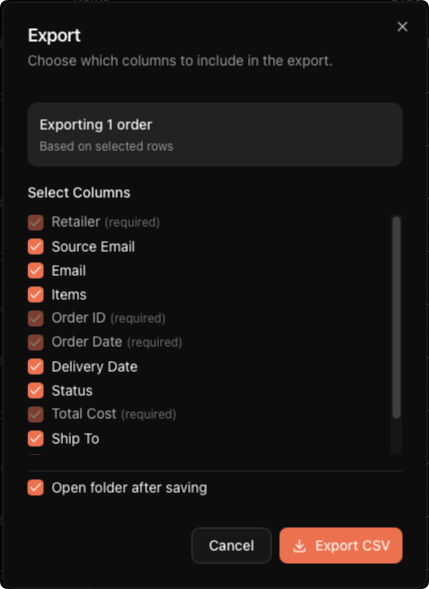
Choosing Columns
All columns start selected. Retailer, Order ID, Order Date, and Total Cost are required and can't be cleared.
| Column | Description |
|---|---|
| Retailer | The store the order came from (required) |
| Source Email | The connected email account the order was read from |
| The customer email address on the order | |
| Items | Product names, separated by semicolons |
| Order ID | The retailer's order or confirmation number (required) |
| Order Date | When the order was placed (required) |
| Delivery Date | When the order was delivered, or the date you marked it delivered or collected |
| Status | The order status in lowercase, such as confirmed, shipped, partially_delivered, delivered, cancelled, or cancellation received. Pickup orders use shipped for Ready to collect and delivered for Collected |
| Cancellation | none, partial, full, or unknown, followed by ; cancellation unmatched when some cancellation lines could not be matched; confirmation missing for a Cancellation received order |
| Ordered Units | Known units in the original order |
| Kept Units | Known units that remain active after cancellations |
| Cancelled Units | Known units cancelled by the retailer |
| Pending Cancellation Lines | Cancellation lines Ordara could not match to items in the order |
| Fulfillment Method | delivery, pickup, or unknown |
| Total Cost | The order total (required) |
| Estimated Active Subtotal | Estimated cost of the units that remain active |
| Address | The shipping or pickup address. The CSV header for this column is Ship To |
| Tracking Number | The tracking numbers of the order's shipments, separated by semicolons |
| Carrier | The carriers of the order's shipments, separated by semicolons |
For a Cancellation received order, Total Cost and Estimated Active Subtotal are blank because the cancellation email did not include reliable pricing.
Exporting Tracking
- Go to the Tracking page.
- Optionally, search, pick a retailer or status, turn on Show Archived, or select the shipments you want.
- Click Export next to Refresh All.
- Choose the columns, then click Export CSV. All columns start selected, and Tracking # is required.
- Choose where to save the file.
Without a selection, the export includes every shipment that matches your search and filters, across all pages. With a selection, only the selected shipments are exported, including those selected on other pages. Rows keep the table's sort order. Hidden table columns can still be exported. The list of shipments is fixed when you click Export CSV, so a tracking update while you choose a file location doesn't change it.
| Column | Description |
|---|---|
| Tracking # | The tracking number from the shipping email (required) |
| Carrier | The carrier for that tracking number |
| Service Level | The shipping service, such as UPS Ground Saver; blank when unknown |
| Last-Mile Carrier | The carrier that handles final delivery after a handoff, such as USPS for UPS Ground Saver |
| Last-Mile Tracking Number | The handoff carrier's tracking number |
| Status | The tracking status, such as In Transit, Exception, or Returned to Sender |
| Notes | Flags shown beside the status: Transferred to USPS, Order manually marked delivered, Issue reported, or Delayed |
| Last Event | The latest carrier scan |
| Last Event Location | Where the latest scan happened |
| Last Event Time | When the latest scan happened |
| Estimated Delivery | The carrier's estimate, or the retailer's promised date when the carrier has none |
| Delivered Date | When the shipment was delivered |
| Last Updated | When the tracking information last changed |
| Last Checked | When Ordara last checked the carrier |
| Retailer | The store the order came from |
| Order ID | The retailer's order number |
| Order Date | When the order was placed |
| Items | Products in the shipment, separated by semicolons |
| Address | The shipping address |
Exporting Inventory
Export CSV in the Inventory header writes one row per active product. Hidden products are not written — see Managing Inventory.
| Column | Description |
|---|---|
| Product | The product's canonical name |
| Orders | How many order lines are grouped into it |
| Retailers | How many distinct retailers it was bought from |
| Ordered | Total units ordered |
| Delivered | Units delivered |
| On Hand | Units currently held |
| Sold | Units sold |
| Unsold | Ordered minus sold |
| Cost/Unit | Weighted-average cost per unit |
| Cost Basis | How far Cost/Unit can be trusted — see below |
| Revenue | Total sales revenue |
| Fees | Total selling fees |
| COGS | Cost of the units sold |
| Profit | Revenue minus COGS minus fees |
See How the Math Works for how each figure is calculated.
The Cost Basis column takes one of five values. They are checked in the order below, so a row shows the first that applies:
| Value | Meaning |
|---|---|
Missing purchase price | At least one contributing line came through with no per-item price and has no override. Its units are counted as inventory but left out of the average, and no new cost can freeze while it is unresolved |
No recorded cost | No contributing purchase carries a price at all, so Cost/Unit is a stand-in 0.00. Any costs already frozen onto transactions remain real and stay in COGS |
Excludes pending review | Cost/Unit is real but incomplete: some order lines are still awaiting review and are not in the average. Clearing the queue may move COGS and Profit — or may not, if the line ends up as its own product |
Known free | Cost/Unit is 0.00 because every priced quantity carries an explicit zero-cost override. This is a complete basis, not missing data |
Recorded cost | Cost/Unit is the complete lifetime weighted average over every contributing quantity with an explicit price |
Every file with at least one product ends with a Cost Basis Legend block — a blank record, then one three-column Cost Basis Legend record per marker used in that file, defining it. An export with no active products has no markers and so no legend. The Warning rows below are separate, and cover figures that can still move.
The export is not a fixed-width table
The legend and warning records make an inventory CSV variable-width, so strict readers need to allow that. The product rows themselves are always the same shape.
A Warning row is appended — one per condition — whenever the file contains a flagged row with sales still priced from that cost. A row whose sales were all valued keeps its column mark alone, since nothing about its figures needs warning about. Only sales count, because COGS and Profit are the only figures a missing cost can distort here; write-offs have no column. See Accuracy & Limitations.
Cost Basis describes Cost/Unit, not the COGS column
The flag is about the product's current cost per unit. COGS on the same row is the cost of the units that actually sold: each sale is valued at the cost frozen onto it, or — if it has none yet — at the current Cost/Unit, which is exactly the case the warning row above exists for. See How the Math Works.
The two can disagree. A product whose orders were all cancelled after its sales were recorded exports No recorded cost with a 0.00 Cost/Unit while its COGS and Profit stay real, because those sales were already valued. Read the flag as "do not trust Cost/Unit", not as "COGS is zero".
Exporting a Profit & Loss Statement
Export CSV on the Inventory Reports page writes the statement for the selected period in two sections: a monthly breakdown (Month, Revenue, COGS, Gross Profit, Fees, Shrinkage, Net Profit) followed by a total row, then revenue by channel (Channel, Revenue, Units). Those are the same names in the same order as the on-screen monthly breakdown, except that Shrinkage is always written here — the screen omits it for a period with no write-offs. A final disclaimer row repeats the on-screen caution that these figures are estimates — including how unit costs are frozen — and should be reviewed with an accounting or tax professional before you rely on them.
Warning rows are appended to match whichever of the statement's three amber banners applied — units valued at $0, incomplete purchase prices, or a cost that excludes the review queue. Each names the products it can. See Accuracy & Limitations and Profit & Loss Reports.